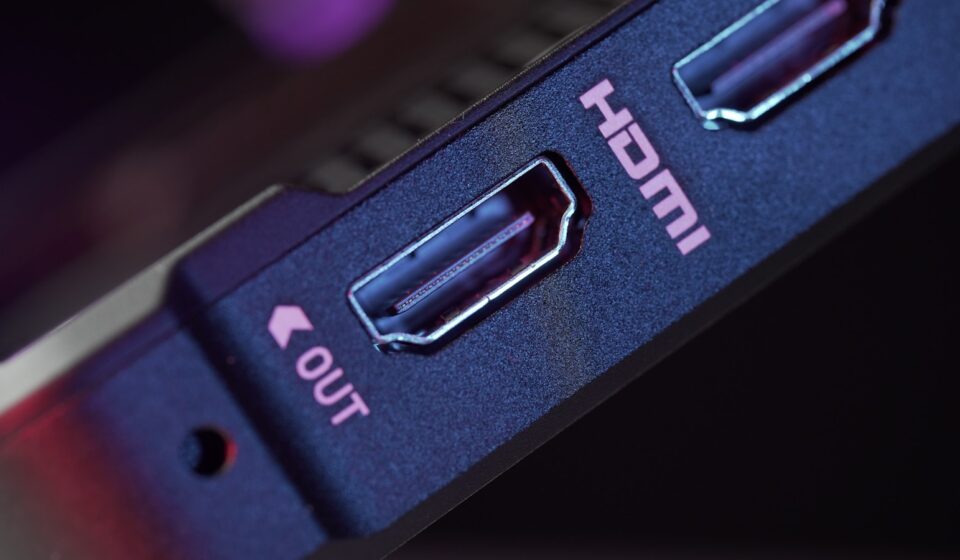

You just spent four hundred bucks on a gorgeous ultrawide monitor. You rip open the packaging, grab that braided cable, jam the DisplayPort end into the back of your new screen, shove the HDMI connector into your laptop, and boot it up. You lean back, waiting for the desktop to appear.
Nothing happens.
Just a floating gray box mocking you. No signal. A completely black screen. You check the connections, blow on the ports like it’s a 1990s Nintendo cartridge, and reboot the machine. Still nothing. Why? Because you just fell victim to the most poorly explained, wildly frustrating secret in the consumer electronics industry—video cables are heavily directional, and they absolutely refuse to work backwards.
Here is the brutal truth about video outputs. You cannot just match the shapes of the plugs to the holes on your hardware and expect a picture. The internal language flowing through those wires dictates everything. When you try to connect a DisplayPort (DP) source to a High-Definition Multimedia Interface (HDMI) display, or vice versa, you are forcing two completely different technological species to talk to each other. Sometimes they get along perfectly. Other times, they require a highly specific, powered translator sitting in the middle of the wire.
Let me save you the headache, the wasted money on Amazon returns, and the creeping feeling that your brand-new graphics card is broken.
The One-Way Street of Video Signals
Back in 2018, I landed a contract to wire up a high-frequency trading desk in downtown Chicago. Twelve screens per station, six stations total. The traders had a mix of older desktop towers, brand new ultra-thin laptops, and a seemingly random assortment of monitors. Some screens only had HDMI ports. Some computers only had DisplayPort outputs. I bought a massive bucket of generic adapter cables, thinking I could just plug everything in wherever it fit.
I was horribly wrong.
Half the screens refused to wake up. It cost me two full days of frantic troubleshooting, a massive restocking fee at a local electronics supplier, and a bruised ego before I finally understood the underlying physics of video conversion. The problem wasn’t the brand of the cables. The problem was the direction of the signal flow.
To grasp why this happens, you have to look at how these two standards actually package data. HDMI transmits data using a continuous, un-packetized stream called TMDS (Transition Minimized Differential Signaling). It essentially fires a firehose of raw pixel data straight at your television or monitor. DisplayPort, created specifically for computers rather than home theater systems, operates entirely differently. It uses a micro-packet architecture—exactly like how Ethernet networks or USB connections send data. It chops the video up into tiny, addressed envelopes and sends them rapidly down the wire.
You cannot just cram micro-packets into a continuous stream receiver without translating them first. That translation process is where the DP to HDMI vs HDMI to DP war actually begins.
DP to HDMI: The Path of Least Resistance
If you are trying to send a video signal from a computer that has a DisplayPort output into a monitor or TV that only accepts HDMI, you are in luck. This is the easy route. Most of the time, this conversion works flawlessly with a simple, cheap cable.
Why is it so easy?
Because the engineers who designed DisplayPort knew that HDMI was already dominating the market. They built a clever workaround directly into the DP standard called “Dual-Mode DisplayPort,” usually marked with a tiny logo that looks like DP++. When you plug a basic passive adapter into a DP++ port, the graphics card physically detects the adapter. It realizes, “Oh, I am talking to an HDMI screen,” and it instantly stops sending packetized DisplayPort data. Instead, the graphics card internally switches gears and starts outputting a native HDMI TMDS signal directly through the DisplayPort physical pins.
The cable itself isn’t doing any heavy lifting. It is literally just a dumb piece of copper rewiring the physical pin layout from one shape to another. The graphics card is doing all the translation work before the signal even leaves the computer.
When Passive Fails You
Unfortunately, you cannot always rely on passive cables. If you are running a massive multi-monitor setup using an AMD Eyefinity graphics card, or if you are trying to push extreme resolutions like 4K at 120Hz, your graphics card might run out of internal DP++ clock generators. When that happens, the passive cable goes dead.
You will need an active adapter.
Active adapters have a tiny, hidden microchip embedded directly inside the plastic housing of the connector. This chip physically intercepts the DisplayPort micro-packets and actively rebuilds them into an HDMI stream on the fly. It requires power to run, which it siphons directly from the 3.3-volt pin inside the DisplayPort socket. If you want guaranteed reliability, especially for high refresh rate gaming or complex docking station setups, skipping the cheap passive cables and spending the extra ten bucks on an active DP to HDMI adapter is the smartest move you can make.
HDMI to DP: Pushing a Boulder Uphill
Now we arrive at the nightmare scenario.
You have a laptop, a PlayStation 5, or an Apple TV with an HDMI output. You want to plug it into a high-end PC gaming monitor that only has DisplayPort inputs left. You buy a standard cable with HDMI on one end and DP on the other. You plug it in. Blank screen.
Here is exactly why that failed.
HDMI does not have a “Dual-Mode” equivalent. An HDMI port cannot magically switch its internal architecture to output DisplayPort packets. It only knows how to spit out TMDS streams. Furthermore, standard passive cables are strictly one-way streets—they only flow from DP to HDMI. If you plug them in backwards, the internal wiring physically prevents the signal from reaching the monitor’s receiver.
To go from HDMI to DisplayPort, you absolutely must buy a specialized, highly specific active converter. And unlike the other way around, this conversion requires serious processing power.
The adapter has to catch the continuous HDMI firehose, buffer the data, chop it up into micro-packets, repackage it according to DisplayPort protocols, and fire it into the monitor. This is a heavy computational lift. Because an HDMI port does not provide enough native electrical voltage to power this hungry processing chip, these specific adapters always come with an extra USB cable dangling off the side. You have to plug that USB tail into a wall charger or a spare port on your computer just to power the conversion chip.
If you see a cable advertised as HDMI to DP and it doesn’t have a USB power connector attached to it, run away. It is either a scam, or the manufacturer labeled it backwards to trick search engine algorithms.
The Technical Showdown: Side-by-Side
To keep this incredibly clear, let’s look at exactly how these two conversion directions stack up against each other in the real world.
| Feature / Metric | DP Source → HDMI Display | HDMI Source → DP Display |
|---|---|---|
| Adapter Type Required | Usually Passive (Active for 4K/VRR) | Strictly Active (No exceptions) |
| External Power Needed? | No. Draws power from DP pin. | Yes. Requires an external USB power tail. |
| Cost Average | $8 – $15 | $30 – $60 |
| Directionality | Unidirectional (Flows to HDMI only) | Unidirectional (Flows to DP only) |
| Gaming Variable Refresh Rate | Works well on modern active adapters. | Often fails. High risk of losing FreeSync. |
| Common Use Case | PC desktop to a living room TV. | Game console to a PC gaming monitor. |
Refresh Rates, Bandwidth, and the Math of Disappointment
Getting an image to simply appear on the screen is only half the battle. The real frustration begins when you open your display settings and realize your expensive 144Hz gaming monitor is permanently locked at a sluggish 60Hz.
Video conversion is brutally unforgiving when it comes to bandwidth. You are always limited by the absolute weakest link in your physical chain. Let’s break down the math.
Say you have an older laptop with an HDMI 1.4 port. You buy a top-of-the-line, incredibly expensive active HDMI to DP adapter rated for 8K resolution. You plug it into a brand-new DisplayPort 1.4 monitor. What happens? You are still trapped by the limitations of that original HDMI 1.4 port on your laptop. It simply cannot push more than 10.2 Gbps of data. You will never see 4K at 60Hz, no matter how much money you threw at the adapter cable.
Conversely, let’s say you have a beast of a graphics card with DisplayPort 1.4 outputs (capable of 32.4 Gbps). You buy a cheap, passive DP to HDMI cable from a gas station to plug into your 4K television. The television starts flickering violently, dropping the signal every few seconds.
That flickering is the sound of your bandwidth choking to death.
Cheap passive adapters generally max out at HDMI 1.4 speeds. Pushing a 4K 60Hz signal requires at least 18 Gbps (HDMI 2.0 specs). The cheap cable simply cannot handle the data density, causing the digital handshake to repeatedly fail. If you want high resolutions or high refresh rates—like 1440p at 144Hz or 4K at 60Hz—you must verify that the specific chipset inside your active adapter supports those exact bandwidths. Look for adapters advertising the Parade PS176 or Synaptics VMM7100 chipsets. Those are the gold standards for flawless, high-bandwidth translation without injecting nasty input lag.
The Gaming Dilemma: G-Sync, FreeSync, and Input Lag
Gamers face an entirely different set of headaches when messing with video conversion. If you play fast-paced competitive shooters, you care deeply about two things: Variable Refresh Rate (VRR) and input lag.
Let’s talk about input lag first.
Does an active adapter slow down your mouse movements? Technically, yes. The microchip inside the adapter takes a non-zero amount of time to process the signal from one format to another. Practically, however, this processing time is measured in microseconds. A high-quality active adapter will introduce maybe 1 to 2 milliseconds of delay. Unless you are a mathematically flawless cyborg, you are absolutely never going to feel that delay in a game of Counter-Strike. Do not let forum trolls convince you that adapters ruin your reaction times.
VRR, however, is a massive problem.
Nvidia’s G-Sync and AMD’s FreeSync rely on incredibly precise, two-way communication between the monitor and the graphics card to synchronize frame rates and eliminate screen tearing. When you stick a conversion chip in the middle of that wire, it often acts like a brick wall for those specialized communication packets.
If you are converting from DisplayPort on your PC to HDMI on a TV, modern active adapters (specifically those built to HDMI 2.1 specs) can usually pass the VRR signal through intact. You can enjoy buttery smooth gameplay on your OLED television.
But if you are going the other way—from an HDMI console like an Xbox Series X to a DisplayPort gaming monitor—you can almost certainly kiss your variable refresh rate goodbye. The complex active adapters required to push HDMI into DP almost universally strip out the VRR metadata. Your monitor will default to a static refresh rate. If you are buying a monitor specifically for a modern gaming console, save yourself the tears and just buy a display with native HDMI 2.1 ports built right into the back.
Color Depth, HDR, and Chroma Subsampling Nightmares
Have you ever plugged in a monitor and noticed that the red text looks weirdly blurry, or the sky in a video game looks banded and blocky instead of a smooth gradient? You are likely suffering from chroma subsampling compression caused by a struggling adapter.
High Dynamic Range (HDR) and 10-bit color require a massive amount of data. When an adapter realizes it doesn’t have enough bandwidth to send the full 4K resolution alongside perfect color data, it quietly compromises. It starts throwing away color information to keep the resolution high. This is called 4:2:2 or 4:2:0 chroma subsampling.
DisplayPort handles massive color depths effortlessly. HDMI 2.0 struggles with it. If you are using a DP to HDMI adapter to watch HDR movies on a television, you must ensure the adapter explicitly states support for “HDR” and “4:4:4 Chroma.” If it doesn’t, your beautiful movies will look washed out, and small desktop text will look like it was smeared with Vaseline.
The translation process also frequently breaks HDCP (High-bandwidth Digital Content Protection). HDCP is the digital lock that Netflix, Hulu, and Disney+ use to prevent piracy. The graphics card encrypts the movie, and the monitor has to decrypt it. If the adapter in the middle fails to pass the digital security keys correctly, Netflix will simply refuse to play the video, or it will aggressively downgrade your stream to 720p. Always check adapter reviews specifically for HDCP 2.2 compliance if you plan on streaming movies.
Audio Passthrough Quirks
People often forget that these cables carry sound, too.
Both DisplayPort and HDMI are fully capable of transmitting high-quality digital audio alongside the video feed. When you convert DP to HDMI, the audio usually survives the trip without a scratch. Your television speakers will play the sound from your computer perfectly.
But crossing from HDMI to DisplayPort? That gets messy fast.
Many PC monitors with DisplayPort inputs have built-in speakers or a 3.5mm headphone jack on the back. When you use an active HDMI to DP adapter to connect a gaming console to that monitor, the audio often vanishes entirely. Why? Because the translation chip inside the adapter prioritizes the heavy lifting of the video signal. Cheaper chips simply drop the audio packets completely to save processing power. If you need sound to pass through to your monitor, you have to read the fine print on the adapter’s spec sheet with a magnifying glass. Look for explicit confirmation of “LPCM Audio Passthrough.”
The Pin 20 Hazard: A Nasty Little Secret
I cannot talk about DisplayPort without bringing up the terrifying reality of Pin 20.
Inside a standard DisplayPort connector, there are 20 tiny gold pins. Pin 20 is designed to carry exactly 3.3 volts of electricity. In a standard setup, this power is meant to flow out of the computer to power adapters (like the active DP to HDMI converters we discussed earlier). It is never supposed to flow backwards from the monitor into the graphics card.
A few years ago, the market was flooded with poorly manufactured, cheap DisplayPort cables that wired Pin 20 straight through from end to end. Monitors were feeding power back into the graphics cards.
Computers refused to boot. Graphics cards literally fried. Motherboards shorted out.
While this issue is mostly resolved in cables manufactured after 2018, it still occasionally pops up in the cheapest, unbranded adapters flooding online marketplaces. When you are buying any cable that interacts with DisplayPort, spend an extra five dollars and buy from a reputable brand that explicitly states their cables are “VESA Certified.” VESA is the governing body that created the standard, and their certification guarantees that Pin 20 is safely disconnected in standard cables.
Macs, Docks, and USB-C Complications
Let’s add another layer of absolute chaos to this situation: Apple laptops and USB-C docking stations.
Modern MacBooks don’t have dedicated DisplayPort connections. They use Thunderbolt or USB-C ports that carry a protocol called “DisplayPort Alternate Mode.” If you plug a USB-C to HDMI cable into a Mac, the cable is actually doing a two-step dance. First, it extracts the raw DisplayPort signal hidden inside the USB-C port. Then, an active chip inside the cable translates that DP signal into HDMI.
Macs are notoriously picky about this translation process.
If you buy a cheap hub or dock, the Mac might refuse to output a 60Hz signal, locking you at a nauseating 30Hz. Or worse, if you try to plug two monitors into a single cheap adapter, macOS will aggressively mirror the displays instead of extending them. This happens because Apple refuses to support a DisplayPort feature called MST (Multi-Stream Transport). To get dual external monitors working correctly on a Mac, you often have to bypass standard DP to HDMI adapters entirely and buy deeply expensive Thunderbolt-specific docks that handle the video routing natively.
Windows machines are much more forgiving with MST, allowing you to daisy-chain monitors together. But even on a PC, the moment you introduce an HDMI conversion into a DisplayPort daisy-chain, the chain breaks. HDMI cannot pass a daisy-chain signal downstream. It must always be the absolute last stop on the line.
Troubleshooting the Abyss: A Step-by-Step Survival Guide
Alright. You understand the theory. But right now, you are still staring at a black screen, and you just want it fixed. Let’s walk through the exact diagnostic tree I use when a mixed-cable setup refuses to play nice.
- Step 1: Verify the Flow Direction. Look at the cable packaging. Is the source device listed first? If you have an HDMI laptop and a DP monitor, and your cable says “DP to HDMI,” you have the wrong cable. Throw it in a drawer for later. You need a dedicated, USB-powered HDMI to DP active adapter.
- Step 2: Check the USB Power. If you are using an active adapter, trace the USB power cable. Is it plugged into a low-power port on your keyboard? Move it. Plug it directly into a high-amperage USB port on the motherboard or directly into an iPhone wall charger. These chips need consistent juice.
- Step 3: Force the Input Manually. Monitors are stupid. Their “Auto-Detect” features fail constantly when conversion chips are involved. Use the physical buttons on your monitor to manually force the input selection to the exact port you are using. Do not rely on the screen to find the signal itself.
- Step 4: Lower the Refresh Rate in Safe Mode. Sometimes the computer is trying to send a 144Hz signal through an adapter that can only handle 60Hz. The monitor panics and goes black. Boot your computer into Safe Mode (which defaults to a basic, low-resolution 60Hz signal). If the picture appears, go into your graphics settings, lock the refresh rate to 60Hz, and reboot normally.
- Step 5: The Power Cycle Trick. Digital handshakes get stuck in memory loops. Unplug the monitor from the wall. Unplug the video cable. Turn off the computer. Wait sixty seconds. Plug the monitor back into the wall, turn it on, and then plug the video cable into the powered-on computer. This forces a completely fresh hardware handshake.
The Fiber Optic Future
If you are trying to run a video signal across a large room—say, from a computer in your office to a television in your living room—you are going to hit another physical limit. Copper wire degrades video signals incredibly fast.
Standard passive DisplayPort cables die around the 3-meter (10-foot) mark. HDMI cables can sometimes push 5 meters before the signal falls apart. If you try to stick a conversion adapter on the end of a 15-foot cable, you are almost guaranteed to get a blank screen due to voltage drop.
The solution here involves abandoning traditional copper entirely. Active Optical Cables (AOC) use lasers to shoot the video data down tiny glass fibers. They are completely immune to electromagnetic interference, and they can easily carry a 4K 120Hz signal over 100 feet. If you need a massive run that also involves converting DP to HDMI, buy a long Fiber Optic HDMI cable, run it across the house, and put a high-quality active DP-to-HDMI adapter right at the back of the computer. Do not put the adapter at the television end. You always want the conversion to happen as close to the source as physically possible.
Is One Actually Better Than the Other?
People often ask me if they should actively choose one port over the other when setting up a new desk. If your graphics card has three DisplayPorts and one HDMI port, and your monitor has the exact same layout, which one do you use?
Always use DisplayPort for computers. Always use HDMI for televisions and consoles.
DisplayPort is a computing standard. It natively supports higher bandwidths for multi-monitor setups, it handles variable refresh rates on PC monitors perfectly, and the physical connectors actually lock into place with tiny mechanical teeth. (Seriously, the locking mechanism on DP cables is fantastic. No more cables falling out because you accidentally bumped your desk).
HDMI is a consumer electronics standard. It was built for Blu-ray players, soundbars, and home theater receivers. It handles Audio Return Channel (ARC) and consumer electronics control (CEC) flawlessly, allowing you to control your TV volume with your Apple TV remote.
When you cross the streams, you are inherently compromising. You are forcing a computing protocol to act like a home theater protocol, or vice versa. It works, thanks to the massive engineering efforts behind active chipsets, but it is never native.
Final Verdicts and Buyer Advice
Let’s tie all of this chaotic technical reality into a few hard, actionable rules you can take with you the next time you are standing in the aisle of an electronics store, staring blankly at a wall of overpriced wires.
First, stop buying cables based purely on price. That generic six-dollar adapter on Amazon with a brand name that looks like someone smashed their hands on a keyboard? It is going to fail you. It will strip out your HDR, cap your refresh rate, and eventually overheat and die. Spend the twenty to thirty dollars required to get an active adapter from a recognizable brand like Club3D, Cable Matters, or StarTech. They use genuine, licensed translation chipsets.
Second, memorize your hardware’s true limits. Look up the exact specification of the ports on your devices. Are they HDMI 1.4, 2.0, or 2.1? Are they DisplayPort 1.2 or 1.4? Your conversion adapter must match or exceed the lowest specification in your physical chain. Buying an 8K adapter for a 1080p laptop port is a waste of money.
Third, accept the directional reality. If you are going from a PC (DP) to a screen (HDMI), a simple passive cable will likely save your day. But if you are trying to force a PlayStation or an HDMI laptop into a DisplayPort-only monitor, prepare to buy an active, USB-powered converter, and accept the fact that your variable refresh rate features are probably going out the window.
Video interfaces are messy. They are governed by different corporate consortiums with competing interests, layered with restrictive anti-piracy encryption, and pushed to their absolute physical limits by the demands of modern 4K gaming. But once you understand that cables are not just dumb pipes—that they are actually highly directional, sometimes computationally active translation devices—you stop fighting the hardware. You buy the right tool for the exact direction of your data flow, plug it in, and finally get to enjoy that gorgeous new monitor.