

Picture this. It’s late 2013, you’ve got five friends crowded around a cracked iPhone 4 trying to watch a pixelated YouTube sketch, and someone knocks over a beer trying to lean in for a better look. We’ve all been there, right? That exact, highly specific brand of living room chaos is exactly why I bought my first-generation Google HDMI dongle. That little black plastic key looked more like an oversized thumb drive than a piece of serious home theater gear. I plugged it in, fought with my awful ISP-provided router for forty-five minutes, and suddenly, my phone wasn’t just a tiny screen anymore.
It was a magic wand.
Back then, getting internet video onto a television required a mess of proprietary cables, noisy gaming consoles, or clunky media center PCs that took ten minutes to boot up. Then this cheap little smart TV adapter arrived and completely flipped the script. But even now, years later—with millions of these units plugged into the backs of televisions worldwide—most people completely misunderstand what this hardware actually does. They think it’s just a dumb pipe. They assume there’s a heavy, invisible data stream flying directly through the air from their mobile device to the television screen.
That assumption is totally wrong.
If you really want to understand what a Chromecast is and how it works, you have to stop thinking of it as a screen mirroring tool. You have to start looking at it as a tiny, highly specialized computer that simply takes orders. Let’s pop the hood on this little plastic puck, tear apart the wireless protocols making the magic happen, and look at exactly why your Wi-Fi network sometimes refuses to play nice with it.
The Great Handoff: How Casting Actually Works
Here is the biggest secret about this entire streaming device category. When you open up Netflix or YouTube on your phone, find a video, and tap that little rectangular cast icon in the corner, your phone does not send the video file to your TV. Your phone sends a URL.
Think of it like being in a restaurant. You are the customer (the phone), the waiter is the wireless network, and the chef in the kitchen is the Chromecast. You do not go into the kitchen and cook the meal yourself. You look at the menu, hand your order to the waiter, and the chef does all the heavy lifting.
When you initiate a cast, your phone essentially leans over to the HDMI dongle and whispers, “Hey, go to this exact web address, pull down this specific video file, and start playing it at the 12-second mark.” Once that message is delivered, the media player connects directly to the internet to stream the content. Your phone steps out of the data path completely.
This is why you can start casting a two-hour movie, turn your phone entirely off, throw it in a river, and the movie will keep playing on your TV. The television isn’t relying on your mobile device for the video data. Your phone has simply been demoted to a glorified remote control. It manages playback state—pause, play, volume up, volume down—but it is absolutely not the source of the media.
The Hidden Language: mDNS and the DIAL Protocol
How do these devices actually find each other in the wild? It all comes down to a clever bit of network engineering.
Before Google finalized their proprietary Cast protocol, they relied heavily on something called DIAL (Discovery and Launch). Fun fact: Netflix and YouTube actually co-developed DIAL back in 2012 specifically to solve the headache of getting mobile apps to talk to smart TVs. To make DIAL work, the hardware relies on mDNS (Multicast Domain Name System).
If you’ve ever dealt with network administration, you know that standard DNS is what translates web addresses like google.com into IP addresses. Multicast DNS does something similar, but strictly on your local home network. When you plug in a new Wi-Fi streaming unit, it immediately starts shouting its presence to the local subnet. It sends out a multicast packet that essentially says, “Hi, I am a media receiver named Living Room TV, I am located at IP address 192.168.1.15, and I know how to play YouTube and Spotify.”
Your phone, connected to the same Wi-Fi network, is constantly listening for these multicast shouts. When you open a compatible app, the phone cross-references the list of shouting devices, realizes “Living Room TV” is available, and lights up the cast button.
This exact mechanism is why public Wi-Fi networks are a total nightmare for casting.
Network Nightmares: Why Your Device Goes Missing
Let me share a very real, very painful operational reality. I spent three hours in a Marriott hotel room in 2017 trying to cast a presentation from my laptop to the room’s television. It failed miserably. Why? Because corporate and public networks use something called AP (Access Point) Isolation.
AP Isolation is a security feature designed to keep devices on a network from talking to each other. It ensures that the guy in room 402 can’t hack into the laptop of the woman in room 403 just because they are on the same hotel Wi-Fi. But remember how mDNS works? It relies on devices shouting at each other across the local network. If AP Isolation is turned on, the router swallows those shouts immediately. Your phone will never see the receiver, even if they are literally inches apart and connected to the exact same router.
At home, you usually don’t have AP Isolation turned on. But you might still experience the dreaded disappearing cast icon. If you find yourself constantly rebooting your router just to get your phone to see your TV, you are likely suffering from one of three specific network friction points:
- Band Steering Confusion: Modern mesh routers love to combine the 2.4GHz and 5GHz bands under one single Wi-Fi name (SSID). Sometimes, your phone is on the 5GHz band, and your media receiver is stuck on the 2.4GHz band. A poorly configured router will block multicast traffic between these two frequencies. The fix? Dive into your router settings and separate the bands into two different names, or force the streaming hardware onto the 5GHz band permanently.
- IGMP Snooping Failures: IGMP Snooping is a router feature designed to prevent multicast traffic from flooding your network and slowing everything down. It’s supposed to be smart enough to let mDNS packets through to the right devices. On cheap, ISP-provided routers, IGMP Snooping is notoriously buggy. Turning it off entirely in your router’s advanced settings often brings a dead cast icon back to life instantly.
- VPN Interference: If you are running a VPN on your phone for privacy, your phone is virtually tunneling out of your local network. It can no longer hear the local mDNS shouts. You must disable the mobile VPN, or enable split-tunneling for your specific smart home apps, to restore local visibility.
The Evolution of the Hardware: From Dumb Pipe to Smart Hub
To really grasp what we are dealing with today, you have to look at how this hardware morphed over the past decade. Google didn’t just iterate on the design; they fundamentally changed the operating philosophy of the device.
The original units were incredibly simple. They had almost no onboard storage, a very weak processor, and absolutely no user interface. If you didn’t have a smartphone or a tablet in your hand, the device was basically a useless paperweight displaying generic landscape photography on your television.
But consumer patience for using their phone as a remote eventually wore thin. People wanted a physical clicker. They wanted on-screen menus. They wanted an actual television experience, not just a receiver waiting for a command.
This shift in consumer demand forced a massive pivot in 2020. Let’s look at the actual progression of the hardware to understand exactly what sits behind your TV right now.
| Generation / Model | Release Year | Form Factor | Core Philosophy | Max Resolution |
|---|---|---|---|---|
| First Generation | 2013 | Stick / Flash Drive | Pure receiver. No UI, no remote. Relied entirely on the DIAL/Cast protocol handoff. | 1080p |
| Second Generation | 2015 | Hanging Puck | Better Wi-Fi antennas (added 5GHz support). Still a pure receiver with no onboard interface. | 1080p |
| Chromecast Ultra | 2016 | Hanging Puck | Added an ethernet port to the power brick for hardwired stability. Built for Google Stadia gaming. | 4K HDR |
| Third Generation | 2018 | Hanging Puck | Minor processor bump. The final pure “dumb” receiver model Google produced. | 1080p (60fps) |
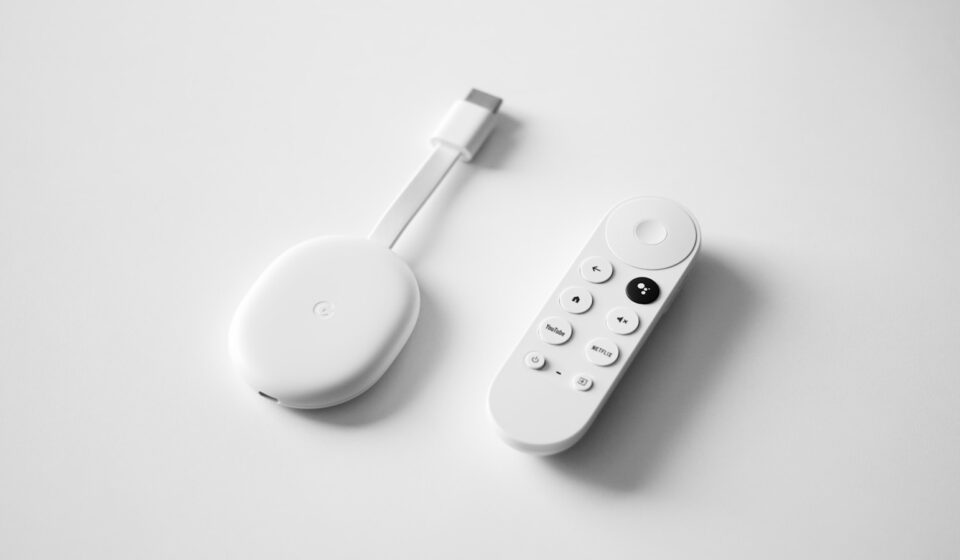
| With Google TV (4K) | 2020 | Oblong Pebble | Complete overhaul. Includes a physical remote and a full onboard Android TV operating system. | 4K Dolby Vision |
| With Google TV (HD) | 2022 | Oblong Pebble | Budget version of the 2020 model. Same remote, same UI, lower resolution output. | 1080p HDR |
Notice that hard pivot in 2020? The introduction of the “With Google TV” models changed everything. Suddenly, the device wasn’t just waiting for URLs from your phone. It had its own apps installed locally on an 8GB internal flash drive. It had a Bluetooth remote with a built-in microphone for Google Assistant.
Yet, cleverly, Google kept the original mDNS receiver software running quietly in the background. You can still use the 2020 and 2022 models exactly like the 2013 model. You can still fling a YouTube video from your iPad directly to the screen without ever touching the physical remote control. It is a brilliant piece of backward compatibility that honors the original, highly successful engineering architecture.
Screen Mirroring: The Brute Force Alternative
Now, I mentioned earlier that casting is not screen mirroring. However, this hardware absolutely *can* mirror your screen if you force it to. And understanding the technical difference between these two actions is critical for anyone trying to troubleshoot poor video quality.
Let’s say you open a specific app that doesn’t natively support the Cast protocol. Maybe it’s a niche local news app, or a sketchy sports streaming site loaded in your Chrome browser. You open the Google Home app on your phone, navigate to your device, and hit “Cast Screen.”
Suddenly, your television shows exactly what is on your phone. If you swipe left, the TV swipes left. If you open your text messages, your text messages appear on the 65-inch screen for everyone in the room to read.
This is true screen mirroring, and from a network perspective, it is incredibly violently heavy.
The WebRTC Bottleneck
When you mirror your screen, the elegant URL handoff we discussed earlier goes out the window. Instead, your smartphone is suddenly forced to act as a live television broadcast truck. Your phone must capture its own screen 60 times a second, compress those images into a real-time H.264 video stream, wrap that video in a WebRTC (Web Real-Time Communication) protocol, and blast it over your local Wi-Fi router directly to the TV adapter.
This requires massive processing power from your mobile device. Your phone will get hot. Your battery will drain incredibly fast. And because you are pushing high-bandwidth live video over local wireless airwaves, you are entirely at the mercy of your router’s immediate signal strength.
If someone walks between your phone and the router, or if your microwave turns on (which blasts electromagnetic noise into the 2.4GHz spectrum), the mirrored video on your TV will instantly stutter, pixelate, or freeze. The latency—the delay between you touching your phone screen and the action happening on the TV—will hover around 300 to 500 milliseconds.
That latency makes playing fast-paced mobile games via screen mirroring practically impossible. You turn the steering wheel on your phone, and a half-second later, the car turns on the TV. By then, you’ve already crashed into the virtual wall.
So, the golden rule of this technology is simple. Always look for native app support first. Let the hardware pull the clean, compressed video directly from the internet servers. Only resort to brute-force screen mirroring when you have absolutely no other choice.
The Setup Dance: Navigating the Google Home App
If you’ve bought one of these units recently, you’ve likely experienced the slightly maddening initiation ritual required to get it online. You can’t just plug it in and type in a Wi-Fi password using a remote (unless you have the newer Google TV versions, but even then, the app is pushed heavily).
You have to use the Google Home app. This app acts as the central command center for all of Google’s smart home hardware, and it uses a very specific sequence of wireless handshakes to onboard a new, unconfigured device.
When you plug a brand-new unit into the wall, it obviously doesn’t know your Wi-Fi password yet. So, how does your phone talk to it to give it the password?
The device actually broadcasts its own temporary, hidden Wi-Fi network. It also activates a low-energy Bluetooth beacon. When you open the Google Home app and hit “Add Device,” your phone scans for that specific Bluetooth beacon. Once they find each other, they establish a secure, temporary connection.
Your phone then passes your home Wi-Fi credentials (the SSID name and the password) over this temporary Bluetooth link to the dongle. The dongle absorbs the credentials, shuts down its temporary network, and attempts to log into your home router just like a normal laptop or smartphone would.
When the Handshake Fails
This setup process works flawlessly about 80% of the time. The other 20% of the time, it will make you want to rip your hair out. The app will hang on a screen saying “Connecting to your device…” for three minutes before throwing an incredibly vague error code.
If you find yourself stuck in this setup purgatory, here is the exact operational workflow to force it through:
- Check Local Network Permissions: On iPhones specifically, Apple introduced a privacy feature in iOS 14 that blocks apps from scanning the local network unless you explicitly allow it. If you denied the Google Home app “Local Network Access” in your iPhone settings, the app is literally blind. It will never find the device. Go to Settings > Google Home > toggle Local Network on.
- Disable Cellular Data Temporarily: Sometimes, your phone gets confused during the setup handshake because it realizes the temporary Wi-Fi connection to the dongle doesn’t have internet access. The phone will try to route traffic through your 5G cellular connection instead, breaking the setup process. Put your phone in Airplane Mode, turn Wi-Fi and Bluetooth back on, and try again.
- The Hard Reset: If the unit was previously owned, or if a firmware update got corrupted, you must wipe its memory. Every single model has a physical, tactile button on the hardware itself. While it is plugged into the TV and powered on, press and hold that physical button for about 25 seconds. The LED light will pulse orange, then turn solid white. Let go. You’ve just factory reset the hardware.
The Travel Router Strategy: Surviving Hotel Wi-Fi
Let’s circle back to the nightmare of traveling with a streaming dongle. I mentioned captive portals earlier—those awful hotel or dorm room web pages where you have to type in a room number and your last name before you get internet access.
A standard Chromecast (anything prior to the 2020 Google TV model) does not have a web browser. It physically cannot load the captive portal page to accept the hotel’s terms and conditions. Therefore, it gets blocked by the hotel network permanently.
You could try calling the hotel’s IT support desk and asking them to manually whitelist the MAC address printed on the back of your device. Good luck with that. Usually, you end up talking to a confused front desk clerk who has no idea what a MAC address is.
If you travel frequently, you need a hardware workaround. You need a travel router.
A travel router is a tiny, pocket-sized Wi-Fi router (brands like GL.iNet or TP-Link make excellent ones for under $50). Here is the step-by-step logic map for how you deploy this in a hotel room to bypass all network restrictions:
- Plug the travel router into the wall in your hotel room.
- Connect your phone to the travel router’s private Wi-Fi network.
- Log into the travel router’s admin panel on your phone’s browser. Instruct the travel router to connect to the hotel’s public Wi-Fi network.
- The captive portal will pop up on your phone. You enter your room number and accept the terms.
- Now, the travel router has a verified internet connection from the hotel, and it is broadcasting its own private, secure Wi-Fi bubble inside your room.
- Connect your streaming dongle to the travel router’s private network.
Because the dongle is connected to your own private travel router—and not the hotel’s main system—AP Isolation is no longer an issue. Your phone and your TV adapter can talk to each other freely, and the hotel’s network simply sees all the data traffic as coming from one single approved device (the travel router). This is the only reliable way to cast Netflix to a hotel TV without losing your sanity.
Beyond Video: Audio Casting and Multi-Room Sync
We’ve spent a lot of time talking about video, but the underlying protocol is equally powerful for audio. In fact, for a brief, glorious window between 2015 and 2019, Google sold a device called the Chromecast Audio.
Instead of an HDMI plug, it had a 3.5mm headphone jack. You plugged it into an old set of analog stereo speakers, and it instantly turned them into a Wi-Fi streaming powerhouse. Audiophiles loved it because it supported high-resolution 96KHz/24-bit lossless audio, and it completely bypassed the awful audio compression inherent in standard Bluetooth connections.
Google discontinued the Audio model (a decision that still angers home theater nerds today), but the audio protocol lives on inside every Google Nest smart speaker and modern smart display.
The real magic of audio casting is multi-room sync. If you open the Google Home app, you can group multiple speakers and TVs together into a “Speaker Group.” You can name it “Downstairs Party.” When you open Spotify and cast to “Downstairs Party,” the cloud servers send the exact same audio stream to every device in that group simultaneously.
Fixing the Echo Effect
In theory, multi-room audio sounds amazing. In practice, you might notice a maddening echo. If your living room TV is playing the song just 40 milliseconds behind your kitchen smart speaker, it sounds like you are standing in a cavern.
This delay happens because different hardware takes different amounts of time to process audio signals. A heavy AV receiver processing Dolby Digital will take slightly longer to push sound to the speakers than a cheap, simple smart speaker.
To fix this, you have to manually calibrate the delay. Inside the device settings in the Google Home app, there is a hidden menu called “Group Delay Correction.” It provides a simple slider. You stand directly between the two out-of-sync speakers, play a rhythmic song with a heavy beat, and slowly move the slider millisecond by millisecond until the echo completely vanishes. It requires a bit of patience, but once it is dialed in, the spatial audio effect of walking through your house with perfectly synced music is incredible.
Guest Mode: The Ultrasonic Handshake
There is one more bizarre, almost science-fiction feature built into the older hardware that most people never realized existed. It was called Guest Mode.
Imagine you have a friend over. They want to show you a YouTube video on your TV, but you don’t really want to give them your highly secure, 24-character home Wi-Fi password. Guest Mode solved this using sound waves.
When Guest Mode was activated, the dongle would emit an ultrasonic audio tone through your television speakers. The tone was completely inaudible to human ears, but perfectly audible to the microphone on your friend’s smartphone.
When your friend hit the cast button on their phone (while disconnected from your Wi-Fi but utilizing their cellular data), their phone would use its microphone to listen for that ultrasonic tone. The tone acted as a secure, localized PIN code. Once the phone heard the tone, it proved to the Google servers that your friend was physically standing in the same room as the television. The servers would then authorize the handoff, allowing your friend’s phone to command your TV over the cellular network, without ever touching your private local Wi-Fi.
It was a staggering piece of acoustic engineering. Unfortunately, Google quietly removed Guest Mode from the newer Google TV models, likely because the shift to a remote-control-first interface made the complex ultrasonic handoff unnecessary. But it remains one of the coolest, least understood technical achievements of the early streaming era.
The CEC Standard: Why Your TV Turns On Magically
Have you ever noticed that when you cast a video to a television that is completely powered off, the TV magically wakes up and switches to the correct HDMI input all by itself? That isn’t Google magic. That is an exploitation of an incredibly old, deeply flawed, but highly useful industry standard called HDMI-CEC (Consumer Electronics Control).
CEC is a one-wire communication bus built directly into almost every HDMI cable manufactured in the last fifteen years. It allows devices connected via HDMI to send simple electronic commands to each other.
When the dongle receives a URL handoff from your phone, its first action is to send a CEC voltage spike down the HDMI cable directly into the television’s motherboard. The command translates to: “Wake up from standby mode, and change your active input channel to HDMI 2 immediately.”
If your TV refuses to wake up when you cast, it means CEC is disabled in your television’s main settings menu. The frustrating part? Television manufacturers refuse to use the actual acronym CEC. They all made up their own confusing marketing names for it.
If you own a Samsung, you have to dig into the menus and turn on “Anynet+.” If you own an LG, look for “SimpLink.” Sony calls it “Bravia Sync.” Panasonic calls it “Viera Link.” They are all the exact same underlying CEC protocol. Find that setting, turn it on, and your phone will suddenly gain the power to turn your television on from across the house.
Power Supply Realities: Don’t Use the TV USB Port
Let’s talk about physical installation, because I see people make the same critical hardware mistake over and over again.
When you look at the back of a modern television, you usually see an array of HDMI ports sitting right next to a standard USB port. It is incredibly tempting to plug the streaming dongle into the HDMI port, and then plug its USB power cable directly into the TV’s USB port. It looks clean. It avoids having a wire dangling down your wall to a power strip.
Do not do this. It is a recipe for constant, infuriating reboot loops.
Most standard USB ports built into televisions are designed strictly for reading tiny text files off low-power thumb drives. They typically output a maximum of 500 milliamps (0.5 amps) of power.
A modern 4K streaming dongle requires a bare minimum of 1.5 amps to operate stably. When you plug it into the TV’s USB port, it might boot up fine initially. But the moment you try to stream a heavy 4K movie with high-dynamic-range colors, the processor inside the dongle spikes. It demands more electrical current. The TV’s USB port physically cannot provide that current, causing the voltage to drop. The dongle instantly panics, crashes, and reboots.
You will assume your Wi-Fi is broken, or that the device is defective. In reality, you are just starving the processor of electricity. Always, always use the dedicated wall adapter that came in the box. Yes, it means managing another cable behind your media console, but it guarantees the rock-solid electrical baseline required for heavy video decoding.
Integration with the Broader Smart Home
You can’t really look at this technology in a vacuum anymore. The reason this specific protocol became so dominant isn’t just because it was cheap; it’s because it acts as the primary visual output for a much larger web of smart home devices.
If you buy a cheap, third-party Wi-Fi security camera, viewing the feed on your phone is easy enough. But if you have your Google accounts linked properly, the casting protocol allows for voice-activated routing. You can be sitting on your couch, hold down the microphone button on your remote, and say, “Show me the backyard camera.”
The system intercepts that voice command, translates it, pings the third-party camera servers, grabs the live video feed URL, and uses the exact same DIAL/Cast handoff we discussed earlier to force the live security feed onto your television screen.
This works seamlessly because the underlying architecture treats every stream exactly the same. It doesn’t care if the URL points to a multi-million dollar Netflix original movie or a $30 driveway camera. It is just a player waiting for a web address. That fundamental simplicity makes it incredibly adaptable to almost any future smart home standard, including the new Matter protocols rolling out across the industry.
The Death of the Name?
There is a weird, confusing branding transition happening right now that trips up a lot of consumers. Google is slowly, quietly trying to kill the word “Chromecast.”
For years, the name was iconic. But as the hardware shifted from being a simple dumb receiver to a fully-fledged media hub with a remote control, the marketing department realized the old name confused people. Consumers associated the name strictly with mobile phone casting, not with a standalone smart TV interface.
So, the hardware is now officially branded as “Google TV Streamer” or “Chromecast with Google TV.” The underlying wireless handoff technology—the mDNS shouting, the URL passing, the DIAL protocol remnants—has been officially rebranded simply as “Google Cast.”
You will start seeing “Google Cast Built-In” logos on soundbars, audio receivers, and smart televisions from brands like Sony, Vizio, and TCL. This means the manufacturer licensed the exact same receiver software that runs on the little plastic dongles and embedded it directly onto the television’s motherboard. You don’t even need to buy the external hardware anymore if your TV has the software baked in.
But the mechanics remain exactly the same. Whether it is a standalone piece of plastic dangling from an HDMI port or a few lines of code hidden deep inside a $2,000 OLED television, the dance doesn’t change. Your phone finds the receiver, hands off the web address, and steps back to let the big screen do the heavy lifting.
Final Thoughts on Troubleshooting
If you take away anything from this deep dive, let it be a fundamental shift in how you diagnose problems when your setup inevitably misbehaves. Stop blaming the device itself, and start looking closely at the invisible web of network traffic surrounding it.
When the video buffers endlessly, don’t just reboot the dongle. Look at your router placement. Are you forcing a 4K video stream through three plaster walls and a brick fireplace?
When the cast icon vanishes from your Spotify app, don’t delete and reinstall the app immediately. Look at your network topology. Did your phone accidentally connect to the “Guest” Wi-Fi network while the television is connected to the “Main” network? (Guest networks have AP Isolation turned on by default, killing the mDNS discovery shouts instantly).
Understand that this technology relies entirely on clear, uninterrupted local network communication to set up the handoff, and strong, stable internet bandwidth to actually pull down the video file. Fix the local traffic cop (your router), and you fix 99% of the problems.
It’s wild to think about how much frustration that original $35 piece of plastic saved us all back in 2013. We went from huddling around tiny, cracked phone screens to throwing high-definition video onto the biggest screen in the house with a single tap. The hardware got heavier, the remotes got added, and the user interfaces got infinitely more complex. But at its core, beneath all the flashy menus and voice assistants, it is still just a highly efficient little chef waiting in the kitchen, ready to take your order.