

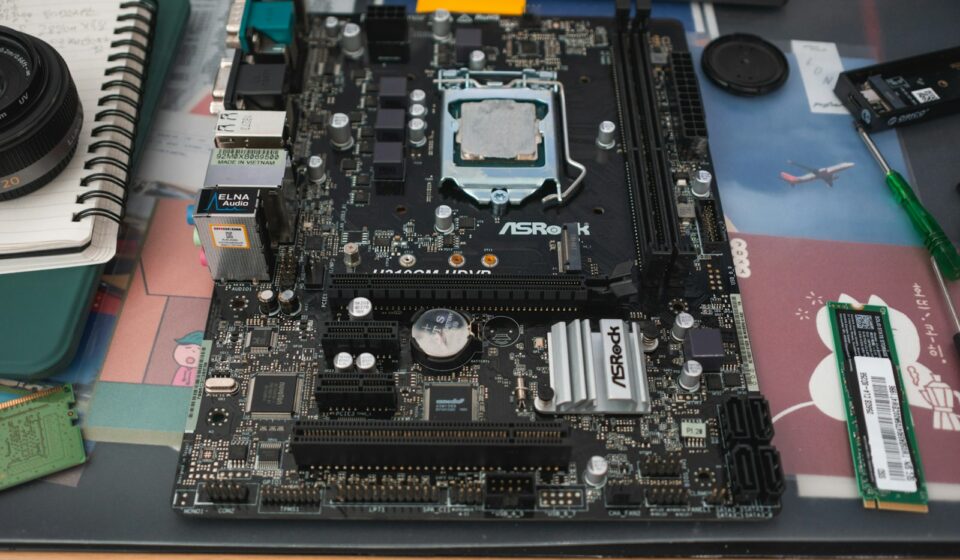

There you are, sweating over an exposed motherboard with a magnetic screwdriver trembling in your hand. You just dropped a screw roughly the size of a breadcrumb. It bounced off a capacitor, vanished into the dark void beneath your graphics card, and now your entire PC build is on hold. All because you wanted to add a bit more storage. That tiny, frustrating piece of metal is the gatekeeper to the fastest storage technology available to consumers today. You are trying to populate an NVMe slot.
If you crack open any modern computer—whether it is a hulking, neon-lit gaming rig or a wafer-thin ultrabook—you will find one of these slots. Sometimes they sit out in the open, proudly exposing the naked green or black circuit board of the drive. Other times, they hide beneath massive, chunky blocks of aluminum designed to soak up heat. But what exactly are you looking at? How does this tiny connector physically communicate with your processor? And why does getting it wrong result in sluggish performance or a drive that simply refuses to show up in Windows?
Let us strip away the dense technical jargon for a minute. We need to look at the bare metal reality of how modern PCs handle data.
The Anatomy of the Slot: What Does It Actually Look Like?
Imagine a standard RAM slot. Now shrink it down, rotate it ninety degrees so it lies completely flat against the motherboard, and shorten it to about an inch wide. That is an M.2 slot—the physical connector that houses an NVMe drive.
Visually, it is remarkably unassuming. You will see a small plastic housing protruding slightly from the motherboard surface. Inside that housing rests a row of microscopic gold pins. A fraction of an inch away from one end, there is a distinct gap in the pins. We call this a “key.”
Directly opposite the slot, extending out horizontally across the motherboard, you will notice a tiny metal standoff. This little pillar has a threaded hole in the center. The distance between the plastic connector and that metal standoff dictates the physical size of the drive you can install.
It sits flat. Parallel to the board. You do not jam the drive straight down like a graphics card. You slide it in at a shallow thirty-degree angle—almost like slipping a letter into a mail slot—and then gently press the opposite end down until it meets the standoff. Then comes that microscopic screw to lock it in place. (Though, mercifully, motherboard manufacturers like ASUS and Gigabyte recently started using tool-less plastic latches you just twist with your finger. A massive relief for anyone with clumsy hands, right?)
The Acronym Soup: M.2 vs. NVMe vs. PCIe
People mix these terms up constantly. It drives system builders crazy. Let us separate the physical shape from the invisible language.
- M.2: This is the physical shape and size of the connector. It is just a form factor. An M.2 slot can technically carry different kinds of signals, including older, slower SATA signals, or even Wi-Fi cards.
- NVMe (Non-Volatile Memory Express): This is the language the drive speaks. It is a highly optimized protocol written specifically for flash storage. Old hard drives spoke a language called AHCI, which was designed for spinning magnetic platters. NVMe ditches that legacy baggage entirely.
- PCIe (Peripheral Component Interconnect Express): This is the actual highway the data travels on. When an M.2 slot is wired for NVMe, it connects directly to the PCIe lanes on your motherboard.
So, when you look at an “NVMe slot,” you are technically looking at an M.2 form-factor slot that has been electrically wired to support the NVMe protocol over the PCIe bus. Simple.
Reading the Physical Clues: Keys and Sizes
You cannot just shove any stick of flash memory into any M.2 slot. The physical hardware prevents disastrous mistakes through a system called keying.
Look closely at the gold contacts on the drive you want to buy. You will see a notch cut out of the pins. Now look at the plastic slot on your motherboard. You will see a corresponding plastic blocker. If the notch and the blocker do not align, the drive will not go in. Do not force it. You will break something expensive.
Modern NVMe drives almost exclusively use an M-Key. This means the notch is located on the right side of the connector (if you are looking at the drive top-down). An M-Key slot provides four full lanes of PCIe bandwidth. That is the firehose you want for maximum speed.
If you see a drive with two notches—resembling a missing tooth on the left and a missing tooth on the right—that is a B+M key. These are usually older, much slower SATA M.2 drives. They fit into the exact same physical slot, but they top out at around 550 megabytes per second. A proper M-Key NVMe drive? It can push over 14,000 megabytes per second on modern hardware. The difference is staggering.
The Numbers Game: 2280, 2230, and Beyond
When you shop for a drive to put in that slot, you will inevitably encounter a mysterious four-digit number. Usually, it is 2280.
This is not a cryptic model code. It is literally just the physical dimensions measured in millimeters. The first two digits dictate the width. The last two digits dictate the length.
- 2280: 22mm wide, 80mm long. This is the undisputed standard for desktop motherboards and standard laptops. If you look at an NVMe slot on a full-size ATX board, the standoff is positioned exactly 80mm away from the connector.
- 2230: 22mm wide, 30mm long. These look like tiny, stubby squares. For years, nobody cared about them. Then Valve released the Steam Deck, and Asus dropped the ROG Ally. Suddenly, everybody wanted 2230 drives to upgrade their handheld gaming PCs. The slots inside those devices are physically too cramped to fit an 80mm stick.
- 2242 and 22110: You rarely see these in the wild. 2242 shows up in some ultra-compact business laptops. 22110 (110mm long) is almost entirely reserved for enterprise servers where they need extra physical space on the circuit board to cram in power-loss protection capacitors.
Most desktop motherboards accommodate multiple sizes. If you look at the empty space behind the NVMe slot, you will see a row of holes drilled into the board at 42mm, 60mm, and 80mm intervals. You can unscrew the tiny metal standoff and move it to whichever hole matches the length of your drive.
The Hidden Real Estate: Finding the Slots on Your Board
If you are staring at a bare motherboard straight out of the cardboard box, locating the main NVMe slot is usually straightforward. It typically sits right below the CPU socket and just above the primary graphics card slot.
Why there? Because proximity matters. That specific slot is usually hardwired directly to the processor. Data traveling from that slot to the CPU’s memory controller has the shortest possible physical distance to cover, resulting in microscopic latency advantages.
However, motherboard designers love to hide things these days.
High-end boards often feature massive “thermal armor” plates. These are thick slabs of brushed aluminum running across the lower half of the board. To find your secondary or tertiary NVMe slots, you have to peel back these metal layers. You will unscrew two or three small screws, lift the heavy metal heatsink away, and reveal the M.2 slots hiding underneath.
And if you are building a Mini-ITX system—those tiny, shoebox-sized PCs—you might find an NVMe slot in the strangest place imaginable. On the absolute back of the motherboard. Seriously. You have to install the drive before you screw the motherboard into the computer case, otherwise, the slot is permanently trapped against the metal wall of the chassis. I learned that lesson the hard way in 2019 while building a media center PC. I had the entire system wired, zip-tied, and cable-managed before realizing the boot drive was still sitting on my desk. I had to rip the entire machine apart just to access the backside slot. Infuriating.
Generational Speed Limits: Not All Slots Are Created Equal
Just because a slot physically accepts an NVMe drive does not mean it will run at peak speeds. The PCIe highway gets completely rebuilt every few years, doubling its speed limit with each new generation.
When you look at an NVMe slot, you cannot physically see which generation of PCIe it supports. You have to consult the manual. The generation of the slot dictates the absolute maximum bandwidth your drive can utilize.
| PCIe Generation (x4 Lanes) | Theoretical Max Bandwidth | Real-World Max Read Speed | Typical Use Case |
|---|---|---|---|
| PCIe 3.0 | 4.0 GB/s | ~3,500 MB/s | Older PCs (Pre-2019), budget laptops. Still perfectly fine for basic gaming. |
| PCIe 4.0 | 8.0 GB/s | ~7,300 MB/s | The current sweet spot. PlayStation 5 storage expansion. High-end gaming and 4K video editing. |
| PCIe 5.0 | 16.0 GB/s | ~14,500 MB/s | Enthusiast bleeding-edge builds. Heavy 8K video rendering. Requires massive cooling solutions. |
Here is where people get incredibly confused. The slots are entirely backward and forward compatible.
If you buy a blindingly fast PCIe 4.0 NVMe drive and plug it into an older PCIe 3.0 slot, it will physically fit. It will boot up. Windows will recognize it. But the slot will throttle the drive. It will cap the maximum speed at 3,500 MB/s. You essentially bought a Ferrari and parked it in a school zone.
Conversely, if you plug an older PCIe 3.0 drive into a brand-new PCIe 5.0 motherboard slot, it works flawlessly. The motherboard simply downshifts its communication speed to match the older drive.
The CPU vs. Chipset Battlefield: Lane Sharing Explained
This is the dirty little secret of PC building that nobody explains until you run into a weird hardware conflict late at night. Modern motherboards typically have three or four NVMe slots. They look exactly identical. But beneath the surface, they are wired completely differently.
We need to talk about PCIe lanes. Think of them as individual copper wires carrying data. A standard consumer processor (like an Intel Core i7 or an AMD Ryzen 7) only possesses a finite, mathematically strict number of these lanes. Usually around 20 to 24 usable lanes.
Your graphics card demands 16 of them. That leaves roughly 4 to 8 lanes for storage.
The Primary Slot (CPU-Attached): The top NVMe slot on your motherboard is wired directly to the CPU. It gets its own dedicated, uninterrupted 4 lanes of PCIe traffic. This is where you put your operating system drive. This is where your most frequently played, load-heavy games should live.
The Secondary Slots (Chipset-Attached): What about the second, third, and fourth slots further down the board? The CPU does not have enough lanes for them. So, those slots route their data through a middleman—the motherboard chipset. The chipset acts like a traffic cop, gathering data from your secondary NVMe drives, your USB ports, and your ethernet controller, and funneling it all into the CPU through a single shared pipeline (called the DMI link on Intel boards).
If you are just playing games or watching YouTube, you will never notice the difference. The latency penalty of going through the chipset is measured in nanoseconds.
But let us say you are a video editor. You have a massive 4K video file sitting on the drive in slot 2, and you are trying to render it out to the drive in slot 3. Both of those drives are desperately fighting for bandwidth through the chipset bottleneck. Speeds will plummet. The system might stutter.
And it gets worse. Motherboard manufacturers have to play a shell game with these lanes. If you populate the third NVMe slot on a mid-range motherboard, the board might silently disable two of your traditional SATA ports to make room for the data traffic. You plug in your shiny new NVMe drive, boot up the PC, and suddenly your old massive mechanical hard drive full of family photos has vanished from Windows. Panic sets in. You check the cables. You swap power connectors. Nothing works.
Then you dig out the paper manual you threw in the trash three years ago, flip to page 28, and read a tiny footnote: “If M.2_3 is populated, SATA6G_5 and SATA6G_6 will be disabled.”
Always read the motherboard manual. It is the only map to the physical lane-sharing labyrinth.
Thermal Warfare: Why NVMe Slots Are Wearing Armor Now
Look at a motherboard from 2017. The NVMe slots are completely bare. Just plastic connectors sitting flush against the fiberglass. Now look at a high-end motherboard from 2024. The slots are buried under half a pound of jagged metal.
What changed? Speed. And with speed comes a terrifying amount of heat.
An NVMe drive is essentially a tiny, highly specialized computer. It has its own processor, called a memory controller. When you start pushing eight gigabytes of data per second through a PCIe 4.0 controller, that tiny silicon chip gets incredibly hot. I am talking over 80 degrees Celsius (176 degrees Fahrenheit) within seconds.
If the controller gets too hot, it panics. To save itself from literally melting, it engages thermal throttling. The drive artificially slams the brakes on performance, slashing your read and write speeds by up to 80% until the temperature drops back to a safe level.
This is why understanding the physical layout of the slot is critical.
When you install a drive, you cannot just leave it exposed anymore—especially Gen 4 or Gen 5 drives. You have to cool it. Most modern motherboards include thick metal heatsinks that screw down over the slot. On the underside of that metal plate, you will find a soft, gummy thermal pad.
Here is a classic rookie mistake. A mistake I have seen seasoned IT professionals make when they are rushing. That thermal pad has a thin, transparent plastic film protecting it from dust. You must peel that plastic off before screwing the heatsink down over the drive. If you leave the plastic on, it acts as an insulator instead of a conductor. You will trap the heat against the drive, causing it to throttle almost immediately under heavy load.
The latest PCIe 5.0 drives have pushed this thermal crisis to absurd extremes. The controllers run so hot that passive motherboard armor is no longer enough. Some Gen 5 drives now ship with their own active cooling solutions—literally tiny, screaming cooling fans bolted directly to the drive. The physical footprint of the NVMe slot hasn’t changed, but the vertical clearance required above it has skyrocketed. If you buy one of these massive, fan-cooled drives, you have to make sure it physically clears your graphics card, which usually hovers just millimeters above the slot.
Installation: A Tactile Walkthrough
Let us walk through the physical act of populating an NVMe slot. It is an oddly satisfying mechanical process when done correctly. If you are terrified of breaking your expensive new hardware, follow this mental map.
- Locate and Clear: Find the slot. If there is a motherboard heatsink covering it, unscrew the two retaining screws. Lift the metal plate away gently—if there was an old drive in there, the thermal pad might act like glue. Peel it back slowly.
- Check the Standoff: Look at the tiny metal pillar at the end of the slot. Is it in the 80mm position? (Assuming you have a standard 2280 drive). If it is in the 60mm hole, you need to unscrew it with a tiny Phillips head screwdriver and move it to the correct hole.
- The Insertion Angle: Pick up your new NVMe drive by the edges. Do not touch the gold pins. Hold it at roughly a 30-degree angle relative to the motherboard. Align the notch on the drive with the plastic key in the slot.
- The Push: Gently push the drive forward into the slot. You will feel a very slight, distinct click or a sudden lack of resistance when the pins seat fully. The drive will now be sticking up in the air at an angle, resting completely unsupported. This is normal. It looks wrong, but it is exactly how the tension spring inside the slot is designed to work.
- The Tie-Down: Press the elevated end of the drive down with one finger until it rests flat against the metal standoff. The half-moon cutout at the end of the drive should perfectly frame the screw hole.
- Secure It: While holding the drive down, take your tiny M2 screw (or the plastic Q-latch) and secure it. Do not overtighten. It just needs to be snug enough to hold the drive flat. You are not torqueing lug nuts on a truck tire.
- Thermal Application: If your motherboard has a heatsink, peel the plastic film off the thermal pad. Lay the heatsink back over the drive, align the screw holes, and tighten it down. The gummy pad will squish slightly against the chips on the drive, creating a bridge for the heat to escape.
That is it. Physically, the hardware is seated. But the battle is only half won.
The Software Friction: Why Windows Refuses to See Your Drive
You boot the PC. You load into Windows. You open “My Computer” or “This PC.” And… nothing. The new drive you just spent $150 on is completely missing.
Panic. Frustration. You wonder if you seated the drive wrong. You wonder if the slot is dead.
Take a breath. The slot is fine. The drive is fine. You just ran into the invisible software barrier.
When you plug a brand new NVMe drive into a slot, it is entirely blank. It does not have a file system. It does not have a drive letter assigned to it. Windows sees raw, unallocated silicon, and Windows entirely ignores raw silicon by default to protect you from accidentally writing over unknown hardware.
You have to initialize it.
Right-click the Start button. Select “Disk Management.” A stark, gray window will pop up, and almost immediately, a smaller box will jump to the front of the screen. It will say: “You must initialize a disk before Logical Disk Manager can access it.”
It will ask you to choose between MBR (Master Boot Record) and GPT (GUID Partition Table). Always choose GPT. MBR is a relic from the Windows XP era and cannot handle modern high-capacity drives properly.
Once you click OK, find the drive in the list at the bottom of the window. It will have a black bar over it, labeled “Unallocated.” Right-click that black bar, select “New Simple Volume,” and click Next through the wizard. Assign it a drive letter—let’s say, D:—and let it run a quick format using the NTFS file system.
Suddenly, the black bar turns blue. A notification pops up in the corner of your screen. The drive is alive. The slot has done its job.
Pushing Boundaries: DirectStorage and the Future of the Slot
Why do we care so much about these tiny slots? Why did the entire tech industry abandon the familiar, blocky SATA cables that served us faithfully for fifteen years?
It comes down to how software fundamentally interacts with storage. For decades, storage was the slowest component in a computer. Processors became exponentially faster. RAM became wildly quick. But hard drives were physical disks spinning at 7,200 revolutions per minute. They were mechanical. They had physical limits.
When SSDs arrived, they removed the mechanical bottleneck. But they were still bottlenecked by the SATA cables and the AHCI protocol, which were never designed for flash memory.
The NVMe slot bypasses all of that legacy architecture. It puts the flash memory directly onto the PCIe bus, allowing the processor to talk to the storage at near-instantaneous speeds.
But software developers are only just now figuring out how to exploit this raw speed.
Enter Microsoft’s DirectStorage API. This is a massive shift in how games load data. In traditional PC architecture, when a game needs to load a texture (say, a highly detailed rock face), the data travels from the NVMe slot, into the system RAM, up to the CPU to be decompressed, and then finally sent over to the graphics card to be rendered on your monitor.
The CPU becomes a massive bottleneck. It cannot decompress the files fast enough, even though the NVMe slot is perfectly capable of feeding the data instantly.
DirectStorage changes the plumbing. It allows the data to flow from the NVMe slot directly to the graphics card’s VRAM, completely bypassing the CPU. The graphics card handles the decompression using its thousands of parallel cores, which are vastly superior at that specific mathematical task.
The result? Loading screens disappear. Entire massive open-world environments render in fractions of a second. Game developers no longer have to design long, winding elevator rides or tight, slow-walking corridors just to hide background loading times. The physical capability of the NVMe slot is actually changing level design in modern video games.
Expansion Tactics: What If You Run Out of Slots?
So, you bought a motherboard. It has three NVMe slots. Over the course of two years, you filled all of them. Your boot drive is in slot one. Your game library is in slot two. Your massive collection of drone footage is sitting in slot three.
Now you are out of space again. You look at your motherboard. The M.2 slots are totally populated. Are you stuck? Do you have to throw away a perfectly good 1TB drive just to replace it with a 4TB drive?
No. The beauty of PCIe architecture is its modularity.
Remember, an NVMe slot is just a physical M.2 connector wired into the PCIe lanes. You can literally buy a PCIe add-in card—which looks exactly like a thin, cheap graphics card—that houses two, four, or even eight M.2 slots on its surface.
You plug this adapter card into an empty, full-size PCIe x16 slot on your motherboard (usually the one sitting way down at the bottom, far below your graphics card). Suddenly, you just added four brand new NVMe slots to your system.
There is a catch, though. Because there is always a catch.
Your motherboard must support a feature called PCIe Bifurcation. If you plug an adapter card holding four NVMe drives into a single x16 slot, the motherboard needs to know how to split that massive 16-lane highway into four distinct 4-lane roads. (16 divided by 4 equals 4).
If your motherboard does not support bifurcation in the BIOS, it will only read the first drive on the adapter card and completely ignore the other three. It is a highly specific BIOS setting you have to hunt down, usually buried under an “Advanced PCIe Configuration” menu. You flip the slot behavior from “x16” to “x4/x4/x4/x4.” You save the settings, reboot, and boom—four new ultra-fast storage pools appear in Windows.
The External Option: Thunderbolt Enclosures
Let us pivot for a second. What if you do not have a desktop? What if you are working on a slim laptop that only has a single, internal NVMe slot, and you absolutely refuse to crack the chassis open because it will void your warranty?
The industry solved this by moving the slot to the outside of the machine.
You can buy external NVMe enclosures. These are sleek, metallic tubes roughly the size of a large candy bar. Inside, they contain a standard M.2 slot and a bridge chip. You slot a bare NVMe drive into the enclosure, screw it shut, and plug it into your laptop using a Thunderbolt 3, Thunderbolt 4, or USB4 cable.
Because Thunderbolt interfaces directly with PCIe lanes externally, you get massive speeds. A good Thunderbolt enclosure will let an NVMe drive hit read speeds of 2,800 MB/s. It is not the 7,000 MB/s you get natively on the motherboard, but it is fast enough to edit uncompressed 4K video directly off the external drive without dropping a single frame.
It completely changes the workflow for traveling creatives. You can have a heavy, massive desktop at home, pull the NVMe drive out of the motherboard, slot it into an external enclosure, toss it in your backpack, and plug it into your MacBook at a coffee shop. The exact same bare-metal storage, adapting instantly to different environments.
Final Thoughts on the Silicon Real Estate
We started by looking at a tiny, frustrating screw and a seemingly insignificant plastic connector hiding beneath a metal plate. But that little millimeter-tall piece of plastic is arguably the most important data bottleneck in your entire machine.
It dictates how fast your operating system wakes up. It controls how quickly complex game worlds stream into your memory. It manages the flow of massive video files when you are scrubbing through a timeline.
You don’t need a computer science degree to understand it. You just need to respect the physical rules. Match the key. Check the length. Understand the PCIe generation limits. Peel the plastic off the damn thermal pad. And always check your motherboard manual before assuming a secondary slot will run at maximum speed without disabling something else.
Next time you build a PC or upgrade a laptop, you won’t just see a random slot on a circuit board. You will see the direct highway to your processor. Treat it right, cool it properly, and it will feed data to your system faster than you ever thought mechanically possible.