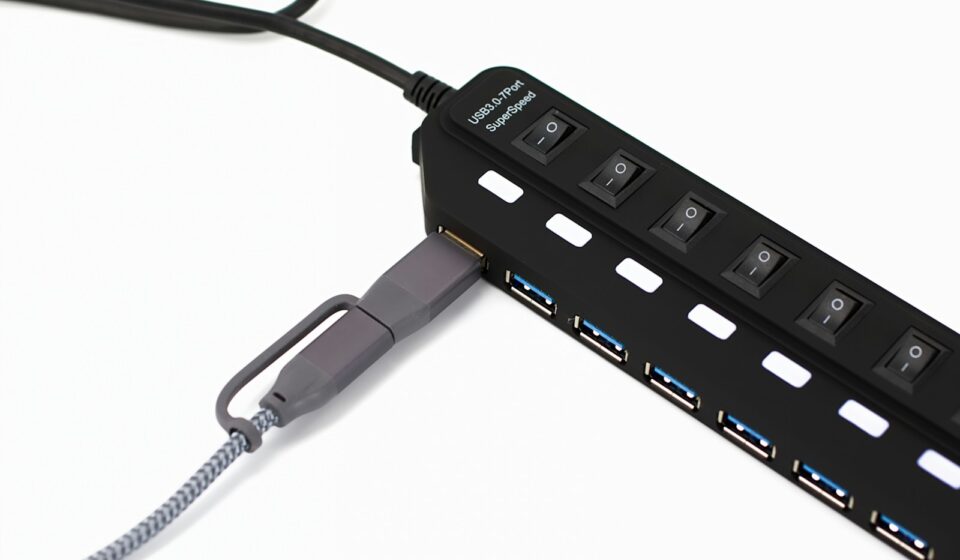

Picture this. You are stuck on a sweltering tarmac at DFW airport, your flight is delayed by three hours, and your primary laptop just died. The battery simply gave up the ghost. That wouldn’t normally be a catastrophe, except a highly anxious client is waiting for a 4GB raw video file you shot yesterday, and it is currently trapped on a portable solid-state drive sitting in your backpack. You only have your Android phone. Panic sets in, right?
I lived that exact scenario back in October 2019.
My lifeline wasn’t some expensive cloud subscription or a nearby Wi-Fi network. It was a tiny, easily misplaced, five-dollar piece of plastic and metal: a USB OTG adapter. I plugged the thumb-sized dongle into my phone’s charging port, hooked up the SSD, watched the file manager pop up on my screen, and emailed the footage over a shaky 4G connection. The client was happy. I kept my job.
That little piece of hardware fundamentally changes what a smartphone actually is. It flips a hidden switch inside your device’s operating system.
Normally, when you plug your phone into a computer, the phone acts as a peripheral—a passive storage drive taking orders from the PC. USB On-The-Go (OTG) reverses that relationship. Your phone suddenly becomes the host, commanding whatever peripheral you attach to it. It turns a glass slab into a central computing hub.
Most folks think these adapters are just for transferring photos off old flash drives. That barely scratches the surface. If you know what you are doing, you can morph your Android device into a makeshift desktop, a portable music studio, or an emergency rescue tool.
Let’s get into the weeds. Here are ten highly specific, incredibly practical ways to push that tiny port to its absolute limits.
1. Rescuing Data from a Device with a Shattered Screen
We have all been there. You drop your phone face-first onto a gravel driveway. The glass web-shatters.
The display might still light up, showing your lock screen, but the digitizer—the invisible layer that actually registers your finger taps—is completely dead. You cannot swipe to unlock it. You cannot back up your authenticator app codes. You are locked out of your own digital life.
Grab your adapter.
Plug in a standard, cheap, wired USB mouse. The kind you probably have sitting in a junk drawer from an old desktop PC. The second you connect it, a tiny black cursor will magically appear on your cracked Android screen.
It feels bizarre the first time you see it.
You can now use the mouse to left-click and drag upwards, simulating a swipe. You can click your PIN numbers to unlock the device. Once you are in, you can navigate through your settings, initiate a cloud backup, or transfer your two-factor authentication tokens to a new device before sending the broken phone off to the repair shop. This single trick has saved me from losing massive amounts of irreplaceable data on at least three separate occasions.
2. Hardwiring to Ethernet for Zero-Latency Connectivity
Wi-Fi is incredibly convenient until you are in a crowded hotel where the signal keeps dropping, or you are trying to play a highly competitive mobile game where every millisecond of input lag matters.
Wireless connections are inherently unstable.
If you need absolute stability, you can bypass the wireless radios entirely. You just need a standard USB-to-Ethernet adapter—the exact same kind you would use for a modern, port-less laptop. Plug the Ethernet cable into the adapter, plug the adapter into your OTG dongle, and shove it into your phone.
Android will instantly recognize the hardwired connection. You will usually see a little bracket icon appear in your status bar, right where the Wi-Fi fan usually sits. Back in 2021, while stuck in a basement conference room in Chicago with zero cellular reception and a notoriously awful guest Wi-Fi network, I used an Anker Ethernet adapter to hardwire my phone directly to a wall port. I hosted a spotless, 45-minute video call without a single dropped frame. If you play games like Call of Duty Mobile, the reduction in ping is violently noticeable.
3. Expanding Storage with Massive External Hard Drives
Plugging in a 16GB thumb drive is obvious. But what about a 4-Terabyte spinning hard drive?
This is where things get highly technical—and highly frustrating if you don’t know the rules of engagement.
Your phone can absolutely read massive external hard drives, but you have to fight through two major bottlenecks: file system formatting and power draw.
Let’s talk about power first. Spinning hard disk drives (HDDs) require a lot of juice to physically spin the metal platters inside. A phone’s Type-C port is strictly limited in how much current it will push out—usually capping around 500mA for standard peripheral modes, though some modern devices push slightly more. If you plug a raw, unpowered HDD into your phone, you will hear a rhythmic clicking sound. That is the drive starving for power, trying to spin up, failing, and trying again. To fix this, you must use a powered USB hub. You plug the hub into the wall, plug the hard drive into the hub, and then connect the hub to your phone via OTG. The wall provides the heavy lifting; the phone just reads the data.
Solid State Drives (SSDs) are much easier. Because they have no moving parts, a standard Samsung T7 or SanDisk Extreme will usually boot up directly from the phone’s battery without a hub.
Then, there is the file system nightmare.
The Android External Storage Format Rules
If you plug a drive in and your phone throws a terrifying “Drive Corrupted: Format Now” error, do not panic. Your data is probably fine. Your phone just cannot read the language the drive is formatted in.
| File System | Native Android Compatibility | File Size Limits | Best Use Case |
|---|---|---|---|
| FAT32 | 100% Universal | Maximum 4GB per file | Moving small documents, older devices. |
| exFAT | Excellent (Android 13+ almost universally supports it) | Virtually unlimited | Large 4K video files, modern cross-platform sharing. |
| NTFS | Poor (Requires third-party apps) | Virtually unlimited | Windows-heavy workflows. Requires apps like Solid Explorer with OTG plugins. |
| APFS / HFS+ | Zero native support | Virtually unlimited | Apple environments. Extremely difficult to read on Android without root access. |
If you are moving files between a Windows PC and your phone, always format the drive to exFAT. It solves 99% of the read/write headaches.
4. Building a Distraction-Free Writing Machine
Touchscreens are terrible for serious writing.
If you want to bang out three thousand words on a flight, or you just prefer the tactile feedback of real keys, you can hook up a full-sized mechanical keyboard. Yes, Bluetooth keyboards exist. But Bluetooth keyboards drop connections, suffer from highly annoying input lag (often hovering around that noticeable 40-60ms range), and constantly need charging.
I frequently travel with a compact, 60% layout mechanical keyboard featuring Cherry MX Brown switches. By running a braided USB-C cable directly from the keyboard into the phone via an OTG adapter, I bypass the wireless stack entirely.
The keystrokes register instantly. Android has native support for standard keyboard shortcuts. You can hit Alt+Tab to switch between your browser and your notes app. You can use Ctrl+C and Ctrl+V. If you prop your phone up on a cheap plastic stand, open a minimalist app like iA Writer or Google Docs, and start typing, the phone disappears. It just becomes a dumb terminal for your thoughts. It is arguably the most focused writing setup you can build, fitting entirely inside a small messenger bag.
5. Direct DSLR Tethering for Professional Photography
Trying to check critical focus on a tiny, three-inch camera monitor while standing in bright sunlight is a fool’s errand.
Professional photographers usually tether their cameras to laptops on set, but dragging a MacBook into the woods for a macro photography shoot is highly impractical. Your phone, however, has an incredibly sharp, color-accurate, high-brightness OLED display right there in your pocket.
By connecting your DSLR or mirrorless camera to your Android device, you can use the phone as an external field monitor.
You need a specific cable chain here. Usually, it is a micro-USB or Type-C out from the camera, into the OTG adapter, into the phone. Once physically connected, you fire up a specialized app. For Canon shooters, the legendary ‘DSLR Controller’ app has been the gold standard for years. For Sony or Nikon, apps like ‘Camera Connect & Control’ do the heavy lifting.
The app takes over the camera. You get a live feed directly on your phone screen. You can tap the phone screen to pull focus, adjust your aperture, change the ISO, and trigger the shutter remotely. This is an absolute lifesaver for astrophotography, where touching the physical camera body might introduce microscopic vibrations that ruin a 30-second long exposure.
6. Producing Music with MIDI Controllers
Mobile music production used to be a joke.
The audio latency on older versions of Google’s operating system was so bad that if you tapped a digital piano key on your screen, you would hear the sound a noticeable fraction of a second later. You simply couldn’t play to a beat.
That changed drastically when Google introduced the AAudio API in Android 8.1, drastically shrinking the audio round-trip time. Suddenly, Android devices became highly capable pocket synthesizers.
You can plug practically any class-compliant USB MIDI controller into your phone. Whether it is a small 25-key Akai MPK Mini or a massive 88-key Roland digital piano, the phone will supply the power and read the keystrokes. Open up an app like FL Studio Mobile or Koala Sampler, map the drum pads, and you can literally produce a track while sitting on a commuter train.
The beauty here is the plug-and-play nature of class-compliant devices. You don’t need to hunt down obscure drivers. The operating system sees the MIDI inputs natively. I once watched a guy in a coffee shop sequence an entire lo-fi hip-hop beat using nothing but a PO-33 pocket operator, a cheap MIDI keyboard, and a beaten-up Google Pixel 4a.
7. Rigging Up Professional Audio Interfaces and Microphones
Built-in phone microphones are heavily processed. The software aggressively applies noise cancellation, compression, and EQ to make human speech intelligible over cellular networks. That is great for phone calls. It is terrible for recording a podcast, capturing a voiceover, or tracking acoustic guitar.
You can bypass the internal audio hardware completely.
If you own a standard USB microphone—like the ubiquitous Blue Yeti or a Samson Q2U—you can plug it straight into the OTG adapter. Android will automatically route all audio input through the external mic.
But you can go much further.
You can connect a full-blown XLR audio interface, like a Focusrite Scarlett 2i2. Because the interface handles the analog-to-digital conversion, you get pristine, studio-quality sound directly into your mobile recording app. There is a catch, though. Audio interfaces with phantom power (the 48 volts required to run expensive condenser microphones) will drain your phone battery incredibly fast. Sometimes, the phone will refuse to power the interface at all.
The workaround?
- Step 1: Buy an OTG adapter that includes a power passthrough port (often called a “Y-cable” or a powered hub).
- Step 2: Plug a portable power bank into the charging port of the adapter.
- Step 3: Plug the audio interface into the USB data port of the adapter.
- Step 4: Plug the whole rig into your phone.
The power bank feeds the thirsty interface, while the phone safely records the data stream. Mobile journalists use this exact setup to record broadcast-quality interviews in the field without carrying a heavy laptop.
8. Creating the Ultimate Retro Gaming Emulation Console
Touchscreen controls for classic video games are an absolute nightmare. Trying to execute a precise, frame-perfect jump in Super Mario World by sliding your thumb over flat glass is a recipe for throwing your phone against a wall.
Bluetooth controllers are decent, but again, you run into that pesky input latency. When you are playing fast-paced fighting games or demanding platformers, a 50-millisecond delay means you miss the block, take the hit, and lose the match.
OTG solves this.
Grab a wired Xbox controller, a DualShock 4, or even an old-school wired USB Super Nintendo replica gamepad. Plug it in. Android natively maps the buttons for major controller brands right out of the box.
If you install a frontend emulator like RetroArch, you can turn your smartphone into a highly accurate, zero-latency retro console. I keep a dedicated, older Android phone loaded with a massive library of 16-bit games. By plugging in a wired controller and casting the screen to a hotel television, I have an instant gaming rig that fits in a toiletry bag.
9. Printing Directly to Legacy Hardwired Printers
We supposedly live in a paperless society. That is a lie.
Eventually, you will find yourself needing to print a physical boarding pass, a contract, or a shipping label. Wi-Fi printers are notoriously temperamental. They drop off the network, refuse to wake up from sleep mode, or randomly decide your phone simply doesn’t exist.
When the wireless connection fails, you can force the issue.
Take the square-ish USB-B cable out of the back of the printer. Connect it to your OTG adapter, and plug it directly into your phone. You will need a specific print service plugin installed—usually available for free from the printer manufacturer (like the HP Print Service Plugin or Brother Print Service) in the Google Play Store.
Once connected, the phone treats the printer exactly like a desktop PC would. You hit ‘Print’ in your PDF viewer, select the hardwired USB connection from the drop-down menu, and the paper spits out instantly. It completely bypasses the router, the local network, and all the associated pairing headaches.
10. Reverse Charging a Dead Device (The Vampire Method)
This is the ultimate emergency trick.
Imagine your friend’s phone is completely dead. They need to make a call or pull up a digital ticket, but neither of you brought a portable battery bank. However, your phone is sitting at a comfortable 80% charge.
You can use your phone as a donor battery.
Plug the OTG adapter into your fully charged phone. Then, take a standard charging cable and plug the USB-A end into your adapter, and the other end into your friend’s dead phone. Your device will recognize the other phone as a power-hungry peripheral and begin pushing electricity into it.
It is not fast. Standard OTG power output is a slow trickle.
You are not going to fast-charge their device this way. But it will push enough current to wake the dead phone up, get it past the boot screen, and keep it alive long enough to make that critical phone call or send a desperately needed text message. It is a slow, inefficient transfer of power, but in a pinch, it feels like absolute magic.
The Hidden Nuances of USB-C and Modern OTG
It is worth pausing here to address a massive shift in how this technology actually works under the hood.
Back in the micro-USB days, OTG was a literal, physical hack. The micro-USB connector actually had five pins inside it, while standard USB only had four. That fifth pin was the “sense” pin. When you plugged an OTG cable in, that fifth pin was physically grounded to the fourth pin. The phone’s hardware detected this short circuit, panicked in a good way, and physically switched its internal circuitry from peripheral mode to host mode.
USB-C changed the game.
Type-C connectors don’t rely on a dumb, physical pin-shorting trick. They use a highly complex digital handshake protocol called USB Power Delivery (USB-PD) and Dual-Role Data (DRD). When you plug two Type-C devices together, tiny microcontrollers inside the cables and the ports literally talk to each other.
They negotiate.
They rapidly ask each other: “Are you the host? Am I the host? Who is supplying power? Who is receiving power?”
This is why, on modern Android phones, you can actually go into your settings after plugging something in and manually flip the roles. You can pull down the notification shade, tap the “USB charging this device” alert, and tell the phone, “No, I want to control the attached device, but I want the attached device to charge me.”
This is incredibly useful if you have a powered USB-C dock. You can plug your phone into a desktop dock, use the mouse, the keyboard, and the external monitor, all while the dock simultaneously rapid-charges your phone’s battery. It blurs the line between a mobile device and a traditional computer workstation.
Troubleshooting the Inevitable Glitches
Pushing consumer hardware to do things the manufacturer barely advertises comes with friction.
Things will inevitably go wrong. Here are the specific hurdles you will face, and exactly how to sidestep them.
The “USB Device Not Recognized” Error: This happens most frequently with cheap, off-brand flash drives. The memory controller inside the drive is too slow to respond to the phone’s initial handshake. Unplug it, wait five seconds, and plug it back in smoothly and firmly. If it still fails, the drive might be pulling more idle power than the phone’s safety limits allow. Try a different brand. SanDisk and Samsung drives rarely fail this handshake.
The Phone Restarts Randomly When Plugging in a Device: This is a hard power fault.
You plugged in a device—like an old, unpowered hard drive or a massive RGB gaming keyboard—that instantly demanded an massive spike of current. The phone’s internal power management integrated circuit (PMIC) detected the massive voltage drop, assumed a short circuit occurred, and triggered a hard emergency reboot to prevent the battery from catching fire. Do not plug that specific device back in without routing it through a powered hub first.
The Audio Skips or Pops When Using an Interface: If you are recording audio and you hear weird, digital clicks in the playback, you are experiencing buffer underrun. The phone’s CPU is struggling to process the incoming audio data fast enough, dropping microscopic chunks of sound.
To fix this, put the phone in Airplane Mode. Background apps trying to sync data over cellular networks cause massive CPU interrupts. By killing the radios, you free up the processor to focus purely on the incoming audio stream. Also, use a dedicated app like USB Audio Player Pro, which includes its own custom USB audio driver that completely bypasses the notoriously sluggish Android audio mixer.
File Transfers Randomly Freeze at 99%: This is a classic Android quirk when dealing with massive video files over OTG.
The built-in Android file manager is surprisingly terrible at handling large, sustained data transfers. It tries to cache the file in the system RAM before writing it to the external drive. If the file is larger than your available RAM, the transfer chokes and dies silently. Stop using the default file manager. Download a heavy-duty, third-party alternative like Solid Explorer or MiXplorer. They handle data queuing much more intelligently and rarely crash during multi-gigabyte transfers.
The Hardware You Actually Need
Not all adapters are created equal. Buying a gas station dongle is a guaranteed way to corrupt a hard drive.
When you are dealing with raw data and electrical currents, you want components built to tight tolerances. I keep three specific types of adapters in my gear pile at all times.
- The Direct Dongle: A simple, solid piece of aluminum with a male USB-C on one end and a female USB-A on the other. No cables. No weak points. Just a rigid bridge. Brands like Anker or Syntech make these perfectly. They sit flush against the phone case.
- The Short Cable Adapter: Sometimes, a rigid dongle puts too much physical stress on the phone’s charging port, especially if you are plugging in a heavy cable. A dongle with a three-inch braided cable provides necessary flex. It prevents the internal pins of your phone from snapping if you accidentally bump the setup.
- The Passthrough Hub: For power-hungry setups (like the audio interface or the hard drive), you need a hub that allows power to flow into the phone while data flows back and forth. Look for hubs specifically advertising “USB-C PD Passthrough.”
You don’t need to carry all of these. But having at least one reliable adapter shoved into your wallet or attached to your keychain changes how you interact with technology in an emergency.
It stops you from viewing your phone as an isolated, sealed-off appliance. It reminds you that the device in your pocket is an actual, highly capable computer, fully capable of interacting with decades worth of legacy hardware.
You just need the right key to unlock the door.
Next time you are staring at a broken screen, a dead battery, or a massive file you cannot move wirelessly, remember the tiny port at the bottom of your device. It is waiting to be put to real work.