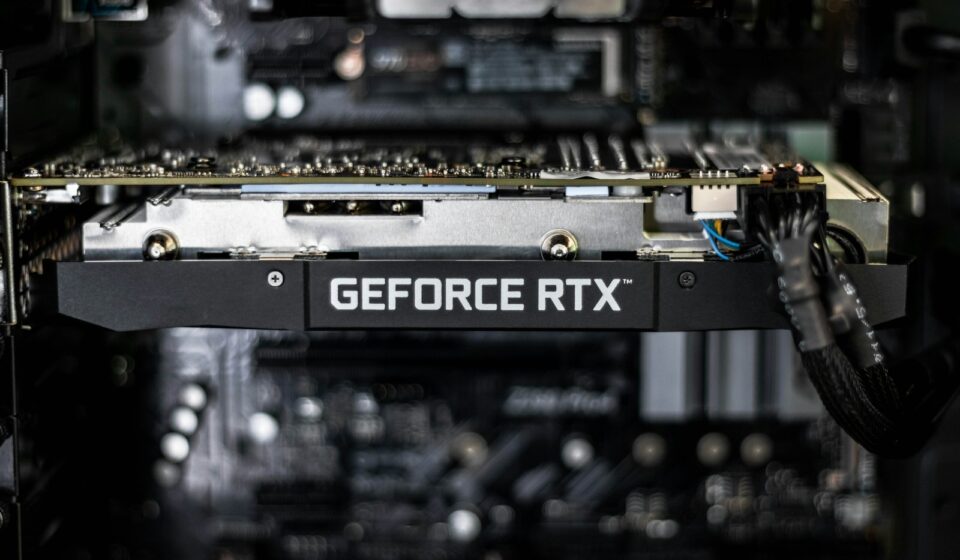

You are mid-raid, your squad is screaming in Discord, and the screen suddenly stutters, dropping to a nauseating 12 frames per second. The fans inside your PC sound like a jet turbine preparing for an aggressive takeoff. You glance over at your second monitor. MSI Afterburner is flashing angry, bright red numbers: 89°C. Your heart drops a little bit.
You panic.
You Alt-Tab out, frantically wondering if your expensive piece of silicon is actively melting itself into a useless brick of plastic and metal. We have all been there. Figuring out what actually constitutes a normal gaming temperature is one of the most stressful rites of passage for any PC builder. You read a forum post from 2018 claiming anything over 70°C is a death sentence, and then you watch a YouTube video where a guy says 90°C is perfectly fine. The conflicting information is enough to make anyone crazy.
Let me stop you right there and save you a massive headache. Your graphics card is entirely fine.
Back in late 2021, I was trying to cram a notoriously hot RTX 3090 Founders Edition into a Lian Li Q58 mini-ITX case. It was a beautiful build, but acoustically, it was a nightmare. I remember booting up Cyberpunk 2077 with full ray tracing enabled, and within ten minutes, the memory junction temperatures hit a terrifying 108°C. I could literally smell the warm fiberglass from the PCB. I spent the next three weeks obsessively testing thermal pad replacements, tweaking voltage curves, and mapping airflow paths just to get those numbers down to a safe 85°C. That brutal, hands-on trial by fire taught me exactly how modern thermal management actually works under the hood.
So, let us strip away the myths, ignore the outdated forum anxiety, and talk about exactly how hot your GPU should be getting when you are pushing it to the absolute limit.
The Absolute Truth About Safe GPU Heat Limits
Here is the short, blunt answer: For the vast majority of modern graphics cards manufactured in the last five years, sitting anywhere between 65°C and 85°C under a heavy gaming load is completely normal.
Wait, really?
Yes. That temperature range is exactly what the engineers at Nvidia and AMD designed these chips to sustain for years on end. If your card is hovering at 78°C while rendering a massive, graphically intense open world, it is simply doing its job. The silicon is not degrading. The solder is not melting. Your hardware is operating well within its specified thermal envelope.
But the long answer? The long answer requires us to look at the specific architecture of your card, because different generations handle heat in wildly different ways. A temperature that makes an older GTX 1080 sweat might be a casual Tuesday for a modern RX 7900 XTX.
The Generational Temperature Matrix
To give you a concrete baseline, I put together this exact breakdown of target temperatures based on recent architectural generations. This assumes a standard room temperature of about 21°C (70°F) and a typical air-cooled setup.
| GPU Architecture (Generation) | Idle Temp (Desktop/Web) | Optimal Gaming Temp | The “Start Investigating” Zone | Critical Throttle Limit |
|---|---|---|---|---|
| Nvidia Ada Lovelace (RTX 40-Series) | 35°C – 45°C | 60°C – 75°C | 82°C+ | 88°C – 90°C |
| AMD RDNA 3 (RX 7000-Series) | 40°C – 50°C | 65°C – 80°C | 85°C+ | 95°C+ (Junction up to 110°C) |
| Nvidia Ampere (RTX 30-Series) | 40°C – 50°C | 70°C – 82°C | 85°C+ | 93°C |
| AMD RDNA 2 (RX 6000-Series) | 38°C – 48°C | 65°C – 80°C | 85°C+ | 95°C (Junction up to 110°C) |
Notice how high those critical throttle limits are? Modern silicon is incredibly resilient. The manufacturers intentionally program the firmware to keep pushing clock speeds higher and higher until the chip hits a specific thermal wall. This behavior is fundamentally different from how PC parts worked a decade ago.
Thermal Throttling: Your Silicon’s Self-Defense Mechanism
People often freak out about their PC overheating, but they misunderstand what “overheating” actually means today. In the early 2000s, an overheating chip would literally fry itself, resulting in a dead system and the acrid stench of burnt electronics. Today? Your graphics card is far too smart to let you kill it.
Enter thermal throttling.
When your card reaches its maximum safe operating temperature—usually around 88°C for Nvidia and upwards of 95°C for AMD—an internal mechanism kicks in automatically. The card’s BIOS communicates with the power delivery system and essentially says, “We are getting too hot, cut the power.” The card will immediately drop its core voltage and reduce its clock speeds to generate less heat.
You will experience this as a sudden, massive drop in your game’s frame rate.
If the temperature continues to climb despite the reduced clock speeds (perhaps because a fan died or your pump failed), the card will pull the ultimate emergency brake. It will completely shut down the display output to save the silicon, causing your monitors to go black while the PC fans spin up to 100%. If you have ever been playing a game and your screen suddenly went black while the audio kept playing for a few seconds—congratulations, you experienced a hard thermal shutdown.
This means that unless you have intentionally flashed a custom, unlocked BIOS to bypass safety limits (which I highly advise against unless you are using liquid nitrogen), you physically cannot kill your GPU with heat. It will throttle or shut off long before permanent damage occurs.
Edge Temperature vs. Hotspot (Junction) Temperature
If you really want to understand your graphics card temps like a seasoned overclocker, you need to stop looking at just the single “GPU Temperature” number.
Download a diagnostic tool like HWiNFO64. Open it up, and scroll down to your GPU section. You will see two completely different temperature readings that usually confuse the hell out of beginners.
- GPU Temperature (Edge): This is the average temperature across the entire silicon die. When game overlays or task managers show you a single temperature number, this is the one they are pulling.
- GPU Hotspot (Junction) Temperature: This is a reading from a network of dozens of microscopic thermal sensors scattered across the hottest specific points on the silicon die.
The hotspot temperature is always going to be higher than your edge temperature. Always. The crucial detail here is the delta—the mathematical difference—between the two numbers.
A healthy, properly cooled graphics card will usually have a delta of about 10°C to 15°C between the edge and the hotspot. For instance, an edge temp of 70°C and a hotspot of 82°C is a beautiful, perfectly functioning cooling solution.
However, if you see an edge temperature of 72°C but a hotspot of 105°C, you have a serious mechanical problem. A delta of 25°C or more almost always indicates that the thermal paste on your GPU die has pumped out or degraded, leaving a tiny, localized corner of the silicon completely bare and baking in its own juices. This specific issue is incredibly common on older cards that have been running hot for years.
Real-World Variables Dictating Your Heat
You cannot look at GPU thermals in a vacuum. Your friend might have the exact same Asus RTX 4070 as you, but his card runs 12 degrees cooler. Why? Because a graphics card is just one piece of a complex thermodynamic puzzle. Several external factors dictate exactly how hot your hardware gets on a sweaty summer afternoon.
The Reality of Ambient Room Temperature
PC cooling systems do not create cold air. They simply transfer heat away from the components and push it into your room. This means your computer’s cooling potential is strictly bound by the laws of thermodynamics, specifically your ambient room temperature.
If you live in Arizona, it is July, your air conditioning is broken, and your room is sitting at 32°C (90°F), your PC is going to run significantly hotter than a gamer sitting in a chilly 18°C basement in London. It is a one-to-one ratio. Every single degree your room temperature goes up, your baseline PC temperature goes up by exactly one degree.
I constantly see people tearing apart their water-cooling loops, convinced their pump is failing, when the reality is they just moved their desk directly over a heating vent in the middle of winter. Check your room temp first. Always.
Case Airflow: The Silent Killer of Frame Rates
You can buy the most massive, triple-fan, four-slot behemoth of a graphics card on the market. But if you shove it into a solid glass box with zero airflow, it will choke, overheat, and throttle within twenty minutes. The fans on your GPU are only as good as the air feeding them.
Think about how an open-air cooler works. The fans pull cool air from the bottom of your case, push it through the dense metal fins of the heatsink, and exhaust it out the sides of the card. That air is now hot. If your case fans do not immediately grab that hot air and physically throw it out of the chassis, your GPU fans will just suck that exact same hot air right back into the heatsink.
This is called heat recycling, and it is the number one reason for terrible thermals in custom builds.
You need a clear, unobstructed path of air moving from the front intake fans, over the components, and out the rear and top exhausts. When I troubleshoot a client’s overheating machine, the very first thing I do is take the side glass panel completely off. If the GPU temperatures immediately drop by 8°C or more within five minutes, the graphics card is not the problem. The case airflow is garbage.
Monitor Refresh Rates and Multi-Display Setups
Here is a weird, highly specific quirk that trips up a lot of people: your idle temperatures might be high simply because of your monitors.
If you run multiple high-resolution displays, or if you have a single 4K monitor running at a massive 240Hz refresh rate, your graphics card actually has to work surprisingly hard just to render the static Windows desktop. The memory clocks will often refuse to drop down to their low-power idle state because they need the bandwidth to push those millions of pixels 240 times a second.
So, instead of idling at a frosty 35°C, your card sits at a mildly warm 52°C while you are just browsing Reddit. This is completely normal and absolutely nothing to worry about, though it does contribute to a slightly warmer room over the course of a day.
Actionable Fixes for a Baking GPU
Alright, let us say you have run the metrics. You checked HWiNFO64, and your card is genuinely running too hot. You are hitting 88°C in standard games, your fans are screaming at 100%, and you are experiencing harsh thermal throttling. What do you actually do about it?
You do not need to immediately buy a new card. You just need to apply a little bit of elbow grease and software magic. Here is my exact, step-by-step methodology for wrestling a hot card back into submission.
Step 1: The Art of Undervolting
If you only take one piece of advice from this entire article, let it be this: Undervolt your graphics card. It is the closest thing to free magic in the PC building world.
Out of the box, manufacturers apply a very generous, “one-size-fits-all” voltage curve to their chips. They do this to ensure that even the lowest quality silicon dies will remain stable. Because of this, your card is almost certainly pulling significantly more electrical voltage than it actually needs to maintain its clock speeds. More voltage equals more heat.
By using a tool like MSI Afterburner, you can manually flatten the voltage/frequency curve. You are essentially telling the card, “Hey, I want you to hit 1900MHz, but I want you to do it using 875 millivolts instead of 1050 millivolts.”
The results of a proper undervolt are absolutely staggering. I have routinely seen RTX 3080s drop from 82°C down to 68°C, while simultaneously dropping power consumption by 60 watts—all without losing a single frame of performance. In fact, because the card runs so much cooler, it stops thermal throttling, which often results in higher, more stable frame rates overall. It takes about thirty minutes of watching a YouTube tutorial and testing stability, and it completely transforms how your hardware runs.
Step 2: Customizing Your Fan Curve
Stock fan curves are usually designed by marketing departments, not engineers. They want the card to be completely silent when reviewing sites test them, which means the fans do not even start spinning until the card hits 50°C or 60°C. Even under load, stock curves rarely push the fans past 65% speed because loud fans result in bad reviews.
If you do not care about a little bit of whooshing air noise, you can drastically lower your temperatures by creating a custom fan curve in MSI Afterburner or Fan Control.
Here is a basic, highly effective curve you can copy right now:
- 30°C: Fans at 30% (Keeps a baseline of air moving to cool the memory).
- 50°C: Fans at 50% (Starts ramping up as soon as a game launches).
- 65°C: Fans at 70% (The sweet spot for heavy gaming).
- 80°C: Fans at 100% (If it hits this, you want maximum cooling immediately).
Yes, your PC will be a little louder. Put on a decent pair of headphones, and you will never notice it. Your silicon will thank you.
Step 3: The Deep Clean
Dust is an incredible insulator. Over the course of a year or two, a fine layer of dust will accumulate on the leading edges of your heatsink fins. Eventually, this builds up into a thick, grey, felt-like mat that physically blocks air from passing through the metal block.
If your temps have slowly crept up over the last eighteen months, do not overthink it. Unplug your PC, take it outside, and hit it with a can of compressed air or an electric datavac. Hold the GPU fan blades gently with your finger while you blow air through them—letting the compressed air spin the fans freely at 5000 RPM can actually burn out the fan bearings and ruin them completely.
Step 4: The Last Resort – Repasting and Thermal Pads
If you have undervolted, cranked your fans, cleaned the dust, and taken off your side panel, but your hotspot temperature is still hitting 105°C? It is time for surgery.
Thermal paste is a viscous fluid designed to fill the microscopic air gaps between the silicon die and the copper cold plate of the cooler. After three or four years of constant heating and cooling cycles, that paste dries out, cracks, and flakes away. This phenomenon is known as “pump-out.”
Taking apart a graphics card voids your warranty in some regions (though not legally in the US), but it is surprisingly straightforward. You remove the handful of spring-loaded screws on the backplate, gently pry the cooler off the PCB, clean the old, crusty paste off the shiny silicon die using 99% isopropyl alcohol, and apply a fresh blob of a high-quality paste like Noctua NT-H2 or Thermal Grizzly Kryonaut.
While you are in there, you might notice soft, rubbery strips covering the memory chips and VRMs. Those are thermal pads. They also dry out and lose their thermal conductivity. Replacing them requires precise measurements—if you use a 2.0mm pad when the manufacturer calls for a 1.5mm pad, the cooler will not sit flush against the main GPU die, and your temps will instantly skyrocket. Always research your exact card model’s pad thickness before attempting a replacement.
For the truly brave, swapping out traditional thermal pads for a modern thermal putty (like Upsiren U6 Pro) completely eliminates the thickness guessing game. You just roll it into little balls, squash the cooler down, and the putty perfectly conforms to the exact tolerances required. I did this on an old mining card I bought off eBay last year, and the memory temperatures plummeted by 22°C instantly.
Software Monitoring: Don’t Obsess, Just Observe
It is incredibly easy to fall down a rabbit hole of thermal anxiety. I have seen gamers who refuse to play their favorite titles because they are staring at an overlay on their second monitor, sweating bullets every time the temperature ticks from 74°C to 75°C.
This defeats the entire purpose of building a gaming rig. You bought the hardware to enjoy games, not to stare at a spreadsheet of fluctuating voltages.
Set up MSI Afterburner. Apply your undervolt. Set a moderately aggressive fan curve. Boot up the heaviest, most graphically demanding game you own—Cyberpunk 2077 with Path Tracing, Alan Wake 2, or whatever makes your system groan. Play it normally for an hour.
Check your peak temperatures. If your core is under 80°C and your hotspot is under 95°C, close the monitoring software. Disable the on-screen display. Walk away from the metrics. Your system is healthy, your cooling is adequate, and your hardware is doing exactly what it was engineered to do.
Heat is simply a byproduct of performance. Embrace the warmth, trust the engineers who built the safety limits, and get back to your raid. Your squad is waiting.