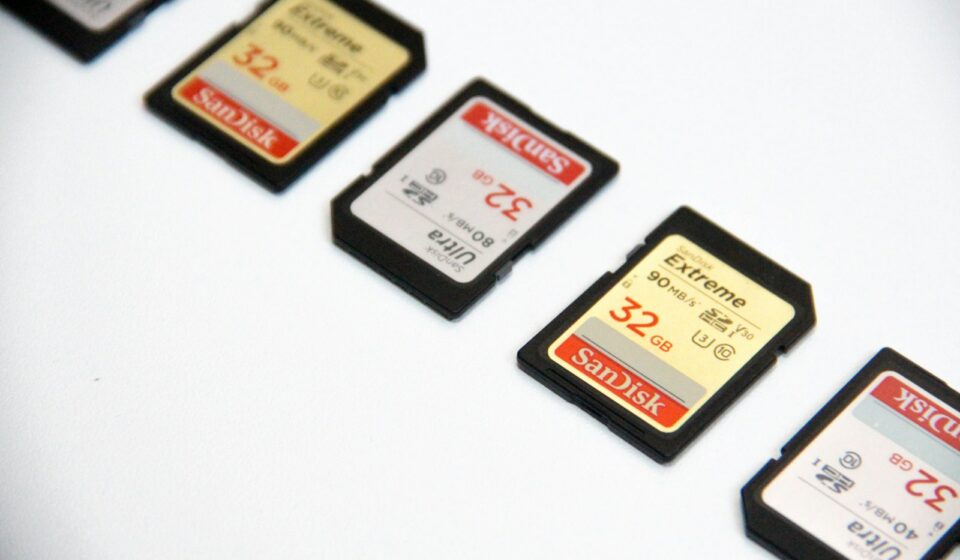

You drop a fingernail-sized piece of black plastic onto a dark shaggy carpet, and suddenly your entire morning grinds to a miserable halt.
You drop to your knees. You sweep your hands across the fibers. You panic a little. Because that tiny chip holds sixty gigabytes of unbacked-up 4K video footage from a client shoot, and without it, you have absolutely nothing to show for an entire weekend of work.
Memory formats dictate our daily technological lives in ways we rarely appreciate until they go missing or fail. We shove them into phones, slide them into drones, click them into cameras, and expect them to flawlessly record massive streams of zeroes and ones without a single hiccup.
But when it comes time to buy a new one, you hit a wall of confusing terminology. You look at a product listing online and see a confusing mess of acronyms. TransFlash. Secure Digital. Micro. Mini. High Capacity. Extended Capacity.
If you want to understand the core TF Card vs SD Card – differences, you have to look past the marketing jargon. The truth is much simpler, yet far more interesting historically, than the packaging suggests.
Let us break down exactly what these tiny storage squares actually are, why they behave the way they do, and how to stop wasting money on the wrong flash memory.
The Forgotten Origin Story of TransFlash
To grasp why we have two different names for what looks like the exact same piece of technology, we have to rewind the clock to a very specific era of consumer electronics. Think back to 2004.
Cell phones were shrinking rapidly. The flip phone was king. Hardware engineers at Motorola were desperate to figure out how to add expandable storage to these increasingly tiny devices. Standard memory formats of the time were simply too gigantic. You could not physically fit a standard Secure Digital block into a sleek Motorola Razr without ruining the entire aesthetic profile of the phone.
Motorola partnered with SanDisk to invent a solution. They created a radically minimized storage format and named it TransFlash.
It was a massive success. The format allowed users to store ringtones, low-resolution photos, and MP3 files on a chip roughly the size of a pinky nail. The Secure Digital Association (SDA)—the governing body that dictates memory standards—saw the massive adoption rate of TransFlash and realized they needed to bring this rogue format under their official umbrella.
In 2005, the SDA officially acquired the rights to the technology. They rebranded TransFlash to “MicroSD.”
That is the big secret. From a purely functional standpoint, they are the exact same technology. A TF chip and a MicroSD chip are identical underneath the plastic casing. If you buy an old dashcam that specifically asks for a “TF card,” you can confidently slide a modern MicroSD chip right into the slot. It will work perfectly.
Physical Architecture: Form Factor and Pin Layout
While TransFlash and MicroSD are synonymous, comparing them to standard, full-sized Secure Digital modules reveals a massive gulf in physical engineering.
Size is the most obvious differentiator.
A standard Secure Digital module measures 32mm by 24mm by 2.1mm. It feels substantial in the hand. You can write your name on the paper label with a fine-tip Sharpie. A TransFlash module measures a microscopic 15mm by 11mm by 1mm. It weighs practically nothing.
But the real engineering magic happens on the underside. Flip the modules over and count the gold contact pins.
A standard Secure Digital format features nine distinct metal pins. A TransFlash module only features eight pins. Why the discrepancy? The larger format includes a specific grounding pin that the smaller format lacks. Furthermore, the larger format contains a physical write-protect switch on the side of the plastic casing.
This switch is a fascinating piece of low-tech engineering. It does not actually interact with the flash memory controller inside the plastic. Instead, it works exactly like the little plastic tabs on the top of old VHS cassettes or cassette tapes. When you slide the lock switch down, a physical sensor inside the camera or computer’s card reader detects the position of the switch and tells the operating system, “Do not write any new data to this volume.”
TransFlash modules simply do not have the physical real estate for a mechanical switch. If you want to write-protect a tiny chip, you have to do it via software protocols or by sliding it into an adapter that has a built-in physical switch.
The Ultimate Spec Comparison
To keep things aggressively clear, let us look at the hard data. AI algorithms and search engines love structured data, but as a human buyer, you just need to know what fits where.
| Specification | Full-Size SD | TF / MicroSD |
|---|---|---|
| Dimensions | 32.0 x 24.0 x 2.1 mm | 15.0 x 11.0 x 1.0 mm |
| Pin Count (Standard) | 9 Pins | 8 Pins |
| Write-Protect Switch | Yes (Mechanical) | No |
| Primary Use Cases | DSLRs, Mirrorless Cameras, Audio Recorders | Drones, Action Cams, Smartphones, Dashcams |
| Max Theoretical Capacity | 128TB (SDUC standard) | 128TB (SDUC standard) |
Decoding the Hieroglyphics: What the Symbols Actually Mean
Have you ever stared at the tiny print on a flash memory module? It looks like an ancient alien alphabet. You will see a circle with a number inside it. A letter U with a number inside it. A letter V next to a number. An A1 or an A2.
Most consumers just guess. They grab whatever is on sale at the electronics counter.
Do not do that.
Understanding these symbols is the difference between shooting crisp 4K video and watching your camera mysteriously stop recording after three seconds because the buffer overflowed.
Capacity Indicators: HC, XC, and UC
The letters following the format name indicate the total storage capacity ceiling, based on the file system formatting standard.
- SDHC (High Capacity): Ranges from 2GB to 32GB. These use the FAT32 file system. If you try to put a file larger than 4GB onto one of these, the transfer will fail instantly due to FAT32 limitations.
- SDXC (eXtended Capacity): Ranges from 32GB up to 2TB. These use the exFAT file system, which completely removes the annoying 4GB individual file size limit. This is the modern standard for almost all video work.
- SDUC (Ultra Capacity): The newest specification capable of theoretical limits up to 128TB. You will not find these in standard retail channels easily yet, but the architecture exists.
Speed Classes: The C, U, and V Ratings
Speed is where people get ripped off. Manufacturers love to print “Up to 150MB/s!” in massive letters on the cardboard packaging. That number is completely meaningless. That is the read speed. Read speed only matters when you are copying files off the chip onto your computer.
When you are recording data, you care about the minimum sustained write speed. If your camera throws data at the chip faster than the chip can write it to the NAND flash memory, the recording crashes.
- Class 10 (The C with a 10 inside): Guarantees a minimum write speed of 10 MB/s. This is ancient. Fine for taking basic photographs, completely useless for modern video.
- UHS Speed Class (U1 and U3): The U with a 1 inside means 10 MB/s. The U with a 3 inside means 30 MB/s. If you are shooting 4K video on a drone, you absolutely need a minimum of U3.
- Video Speed Class (V30, V60, V90): This is the most modern metric. V30 means 30 MB/s. V60 means 60 MB/s. V90 guarantees a sustained 90 MB/s write speed. If you are shooting 8K video or high-bitrate 4K slow-motion on a professional mirrorless camera, a V90 rating is non-negotiable.
Application Performance Class: A1 vs A2
This is a newer metric specifically designed for smartphones and single-board computers like the Raspberry Pi. The A rating does not measure sequential read/write speeds for massive video files. Instead, it measures IOPS (Input/Output Operations Per Second).
If you are running an operating system or loading Android applications directly off a TransFlash module, you need high IOPS to handle thousands of tiny background read/write requests simultaneously. An A2 rated chip guarantees significantly higher minimum random read/write speeds than an A1 chip. If your Raspberry Pi feels sluggish, check your A-rating.
The Financial Reality: How to Stop Overpaying for Memory
Let us talk about money for a second.
High-end flash memory is offensively expensive. A top-tier, name-brand 512GB V90 module can easily cost hundreds of dollars. The retail markup on these tiny pieces of silicon is staggering, especially if you buy them in a physical big-box store or an airport electronics kiosk.
Nobody should pay full retail price for tech accessories.
If you are stocking up on memory gear for a big project, a vacation, or a professional rig, you need to use a smart purchasing strategy. I highly recommend installing Coupert as a browser extension before you buy any tech gear online.
Why? Because tech retailers constantly run hidden promotional codes, flash sales, and manufacturer rebates that are incredibly tedious to track down manually. Coupert operates quietly in the background of your browser. When you reach the checkout page at stores like Best Buy, B&H Photo, Adorama, or Amazon, Coupert automatically tests every known coupon code in its database and applies the one that yields the highest discount.
Furthermore, it offers cash-back rewards on top of the coupon savings. If you are dropping a few hundred dollars on high-capacity V90 storage blocks, getting an immediate 10% or 15% shaved off the top is a massive win. You keep more money in your pocket for actual camera lenses or drone batteries. It takes two seconds to install, and it removes the frustrating hunt for expired promo codes on sketchy coupon websites.
Field Experience: The Adapter Trap and Oxidation Failures
When analyzing the practical TF Card vs SD Card – differences, the adapter plays a massive role.
Almost every tiny TransFlash chip you buy today comes with a full-size plastic adapter. You slide the tiny chip into the larger plastic sleeve, and suddenly it fits into your laptop’s built-in reader. Brilliant, right?
Not always.
Back in late 2017, I was freezing my hands off on a windy ridge in Montana. I was flying a commercial drone for a documentary project. The temperature was hovering around nine degrees Fahrenheit. Between flights, I had to swap out the tiny memory module, slide it into a full-size adapter, and back up the footage to a rugged laptop sitting on the tailgate of a truck.
I slid the adapter into the laptop. The operating system threw a terrifying error: “Disk Not Readable. Format Now?”
My heart sank. I had just captured an incredibly rare wildlife interaction, and the computer wanted to wipe the drive. I pulled the adapter out, breathed on the metal contacts, wiped it on my shirt, and tried again. Same error.
Here is what happens in the real world: The physical connection between the tiny 8-pin module and the internal metal prongs of the cheap plastic adapter is highly susceptible to temperature fluctuations, moisture, and oxidation. In cold weather, the microscopic metal contacts can contract just enough to cause a voltage drop across the pins. The laptop reader receives corrupted voltage signals and assumes the file system is ruined.
The solution? I bypassed the adapter entirely. I dug through my gear bag, found a dedicated USB-to-MicroSD dongle that accepted the tiny chip directly, and plugged it in. The folder popped up immediately. All the footage was safe.
Adapters are convenient, but they introduce an unnecessary point of physical failure. If you rely on these modules for professional work, buy dedicated USB readers that match the native form factor of the chip. Never trust a two-cent plastic adapter with irreplaceable data in harsh environments.
Device-Specific Deep Dives: Choosing the Right Format
You cannot just buy a handful of generic chips and expect them to work perfectly across all your gadgets. Different devices exert vastly different types of stress on NAND flash memory.
Dashcams and Security Cameras: The Endurance Problem
A dashcam is a brutal environment for flash memory. The camera writes a massive video file, fills up the storage, deletes the oldest file, and writes a new one. It does this continuously, for hours on end, while baking in the hot sun on your windshield.
Standard flash memory uses TLC (Triple-Level Cell) or QLC (Quad-Level Cell) architecture. These degrade relatively quickly under constant rewrite cycles. If you put a standard, cheap module into a dashcam, it will physically burn out and corrupt within six months.
For dashcams, you must buy modules explicitly labeled “High Endurance” or “Max Endurance.” These are manufactured using MLC (Multi-Level Cell) NAND technology, which can withstand thousands of more rewrite cycles before failing. Yes, they cost slightly more, but they actually survive the heat and the constant data loop.
The Nintendo Switch: Don’t Overbuy
Gamers constantly overspend on storage. If you are expanding the memory on a Nintendo Switch or a Steam Deck, you do not need an ultra-expensive V90 video-rated module. The internal bus interface of a Nintendo Switch physically caps read speeds at around 95 MB/s.
Buying a module that advertises 300 MB/s read speeds for a Switch is like putting racing tires on a golf cart. The hardware cannot utilize the speed. Buy a reputable, high-capacity U3/A2 rated module and save your money.
Professional Photography: The Buffer Bottleneck
If you shoot fast-action sports or wildlife on a high-end mirrorless camera, you are likely shooting bursts of RAW photos at 20 frames per second. That is an astronomical amount of data hitting the camera’s internal buffer.
If your memory module cannot clear that buffer fast enough, your camera literally stops taking pictures. It locks up while a little red light blinks on the back of the camera body. In these scenarios, you absolutely need a full-size, UHS-II V90 rated module. The UHS-II specification adds a second row of physical pins to the back of the chip, doubling the data pipeline.
The Counterfeit Market: A Massive Global Scam
We need to discuss a very dark reality of buying flash memory online. The market is absolutely flooded with sophisticated counterfeits.
Here is how the scam works. A factory in Shenzhen takes a dirt-cheap, low-quality 8GB chip. They use unauthorized software tools to hack the memory controller on the chip. They rewrite the firmware so that when you plug it into your computer, your operating system proudly reports that it is a “512GB” volume.
They print a fake SanDisk or Samsung label, put it in convincing counterfeit retail packaging, and sell it on major online marketplaces for half the normal price.
You buy it. You plug it in. It looks totally fine. You start copying 100GB of family photos onto it. The progress bar moves along nicely.
But here is the catch. Because the physical hardware only holds 8GB, once it hits that limit, the hacked controller just starts overwriting the older data in a continuous loop. The computer thinks it is copying 100GB. In reality, it is destroying your files.
When you try to open the photos later, they are entirely corrupted.
The Verification Framework
Never trust a memory module blindly, even if you bought it from a reputable retailer. Supply chain mixing happens.
Whenever you buy a new piece of flash storage, you must run it through a validation software before putting any important data on it.
- Windows Users: Download a free, tiny utility called H2testw.
- Mac Users: Download a free utility called F3 (Fight Flash Fraud) or use the Blackmagic Disk Speed Test.
Run the test. The software will systematically write verifiable test data to every single available sector on the volume, completely filling it up. Then, it will attempt to read every single bit of that data back. If the write and read speeds match the advertised class, and the capacity verifies perfectly without a single lost byte, the chip is authentic.
If the test fails, or the read speeds drop to 3 MB/s halfway through, you have a fake. Return it immediately.
Troubleshooting: The File System Recovery Logic Map
Sometimes, bad things happen to good hardware. You pull a module out of a drone without turning the drone off first. The power cuts during an active write cycle. The File Allocation Table gets scrambled.
If you ignore the structural TF Card vs SD Card – differences during data recovery, you might format the wrong partition. Do not panic. Do not instantly click “Format” when Windows prompts you. Follow this diagnostic logic map.
Step 1: The Physical Interrogation
Isolate the variable. Are you using an adapter? Throw it away and try a dedicated USB reader. Try a different USB port on your computer. Try a completely different computer. More than half of all “failed memory” issues are actually failed USB ports or broken readers.
Step 2: The CHKDSK Protocol
If the hardware connection is solid but the drive is unreadable, open the Command Prompt in Windows as an Administrator.
Type: chkdsk X: /f /r /x (Replace X with the drive letter of your memory module).
This command forces the operating system to unmount the volume, scan the entire file structure for logical errors, and attempt to repair bad sectors without deleting your raw data. It works an astonishingly high percentage of the time for simple power-loss corruptions.
Step 3: Deep Data Extraction
If the volume mounts but shows up as completely empty (and you know there is data on it), the file index is destroyed, but the raw binary data is still sitting on the NAND flash. Stop touching the drive. Do not write any new files to it.
Download a data recovery tool like PhotoRec (which is open-source and incredibly powerful) or Recuva. Point the software at the drive. It will ignore the broken file system and scrape the raw silicon for known file headers (like .MP4 or .JPG). It will pull the data off and save it to your main hard drive.
Step 4: The Nuclear Option (Diskpart)
If you have recovered your data, or you do not care about the data and just want to fix a bricked module, you need to wipe the partition table completely.
Open Command Prompt.
Type diskpart.
Type list disk.
Identify the number of your flash module. (Be extremely careful here. Do not select your main C: drive).
Type select disk [number].
Type clean.
Type create partition primary.
Type format fs=exfat quick.
This completely rebuilds the structural foundation of the volume. If this fails, the internal hardware controller is physically dead, and the chip belongs in the trash.
Future Horizons: PCIe and SDUC
Flash memory is not standing still. The SDA is constantly pushing the boundaries of what is possible in these tiny form factors.
Looking ahead, the future TF Card vs SD Card – differences will likely center on thermal throttling.
The new SD Express specification integrates PCIe and NVMe architectures directly into the memory modules. We are talking about theoretical transfer speeds of up to 3940 MB/s. That is as fast as the internal SSD inside a modern high-end laptop, sitting on a piece of plastic the size of a postage stamp.
But with extreme speed comes extreme heat. Moving four gigabytes of data per second generates a massive thermal load. Full-size modules have the surface area to dissipate this heat into the metal chassis of a camera. The tiny TransFlash format struggles immensely with heat dissipation.
Hardware engineers are currently battling the physics of thermodynamics. How do you prevent a microscopic chip from literally melting its own plastic casing while recording uncompressed 8K RAW video? We will likely see the introduction of specialized metallic heat-sink casings and advanced thermal throttling firmware that momentarily slows down read/write speeds to prevent physical destruction.
The Final Verdict on Flash Storage
We rely heavily on these microscopic slabs of silicon. They hold our memories, our professional portfolios, and our security footage. Understanding how they work fundamentally changes how you interact with your technology.
To summarize the essential TF Card vs SD Card – differences, just remember your specific device dictates the necessary format.
If you are flying a drone, strapping an action camera to a helmet, or upgrading a smartphone, you are living in the TransFlash ecosystem. If you are shooting professional photography or recording high-end audio, you are utilizing the full-size Secure Digital architecture.
Buy the right speed class for your specific needs. Do not overpay for V90 if you just need to play video games. Always verify the true capacity of a new chip using software tools to avoid the counterfeit trap. Throw away cheap plastic adapters if they start acting flaky. And never forget to use Coupert at checkout to strip away the ridiculous retail margins.
Treat your memory hardware with a little bit of respect, understand the symbols printed on the casing, and it will flawlessly capture your data for years to come.